
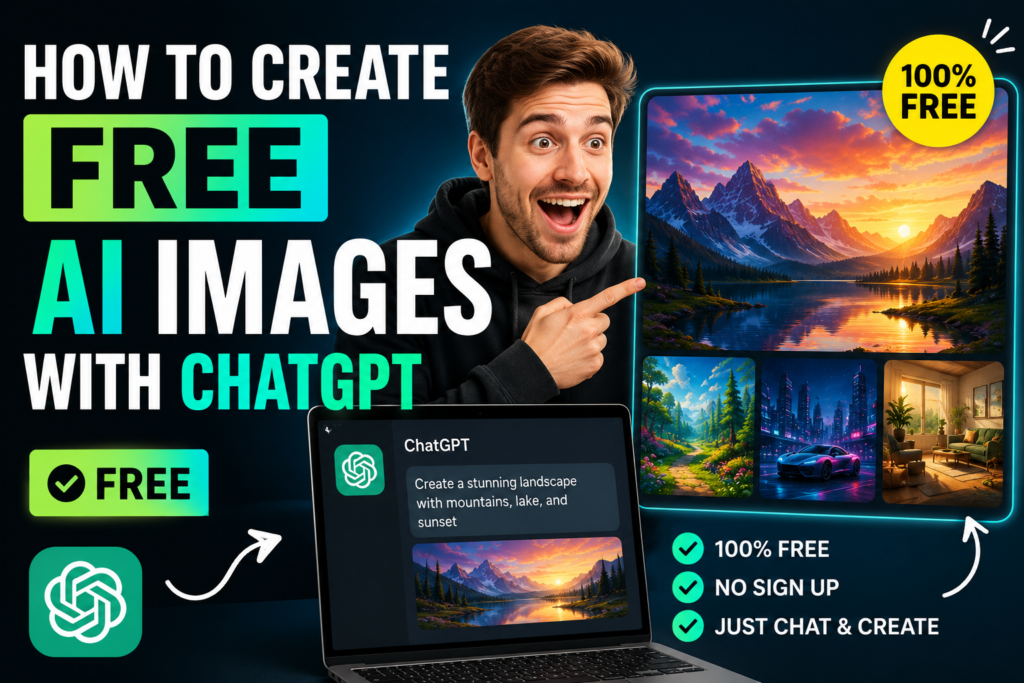
Artificial intelligence has changed the way people create visual content. In the past, creating a professional image often required graphic design software, photography skills, or a professional designer. Today, AI image generators can turn a simple text description into a detailed image within minutes.
One of the easiest options available today is ChatGPT Imhttps://chatgpt.com/ages, OpenAI’s built-in image-generation experience. It allows users to create new images from text prompts, edit existing images, change specific parts of an image, add text, create transparent backgrounds, and generate images in different aspect ratios.
With the current ChatGPT Images 2.5 experience, OpenAI has introduced faster image generation, sharper details, more precise editing, and additional ways to create images, including templates and sketch-based generation on mobile.
But today I will try to show practically, with hands-on examples, how to generate images using prompts and how to create an improved image from an image using Search Console, and I will try to show it here in the form of screenshots.
What Is ChatGPT Image Generator?
ChatGPT Image Generator is an AI-powered image creation feature built into ChatGPT. Instead of manually designing an image, you describe what you want in natural language, and ChatGPT generates an image based on your instructions.
For example, you could type:
Create a realistic 16:9 image of a modern AI workspace with a laptop displaying colorful neural-network graphics, soft natural lighting, and a clean professional desk.
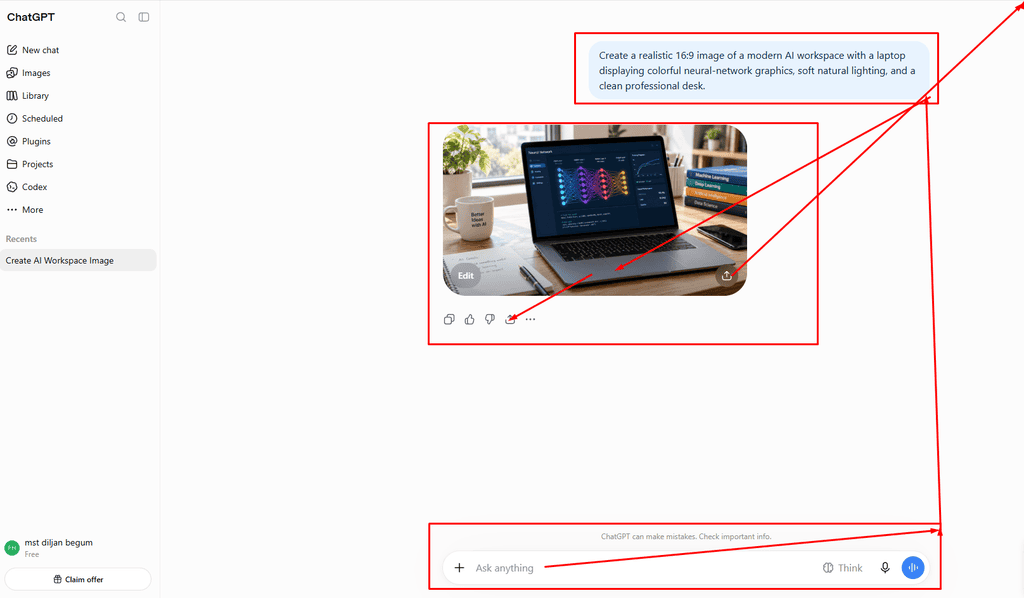
You do not need to know complicated design software or special AI commands. OpenAI recommends using clear descriptions that explain the purpose, main subject, setting, and visual style. In many cases, one to three clear sentences are enough to create a useful prompt.
Is ChatGPT Image Generator Free?
Yes. ChatGPT Images is currently available across all ChatGPT tiers, including the Free tier. However, image generation has separate usage limits, and free users may have stricter limits than paid plans.
Paid plans can provide higher usage limits, while the exact limits can change over time. Therefore, users should check the current ChatGPT interface and official OpenAI information for their account’s available limits.
This means you can start creating AI images without necessarily paying for a subscription.
But let me share my opinion with you, I have generated images, many images. Yes, my free trial has ended. But when it gives me again, then I get a notification from the Search Engine that you cannot generate images for free for the next five hours. After five hours, you can generate images again. Then I wait for five hours or finish my work for today, and the next day, I can nicely generate images again for free.
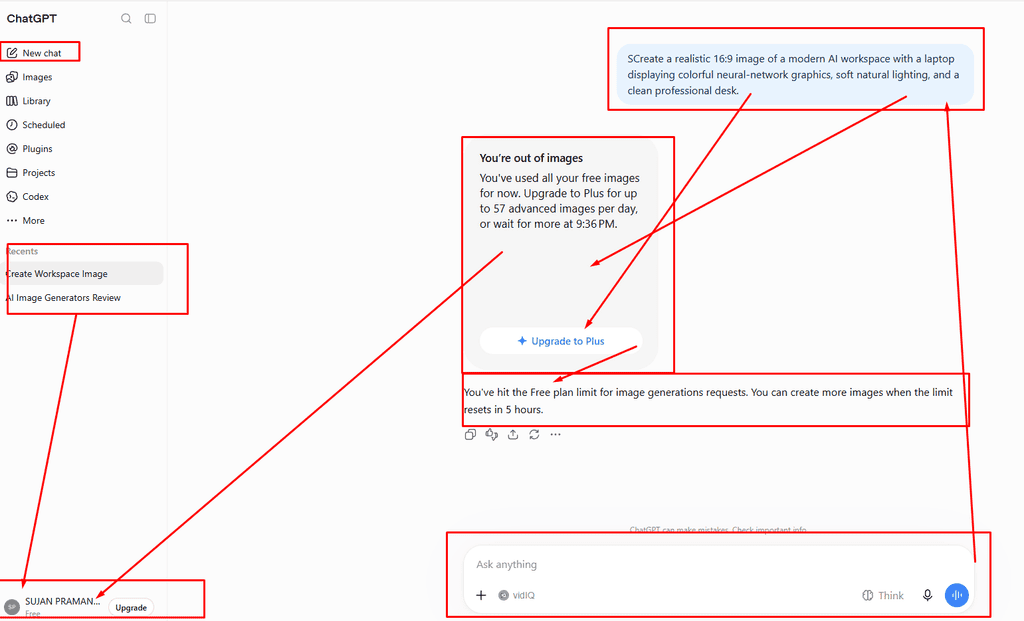
I gave you the screenshot, so you can easily understand what the reality actually is.
How to Create an Image With ChatGPT
Creating an image is straightforward.
First, open ChatGPT and start a conversation. You can simply describe the image you want in the message box.
You can also open the Images section from ChatGPT and start creating an image there. OpenAI’s current interface supports both methods.
For example:
Create a professional featured image for a technology blog article titled “10 Best Free AI Image Generators in 2026.” Show a modern laptop displaying an AI-generated image, with a clean futuristic workspace, realistic lighting, and a professional editorial style. Use a 16:9 composition.
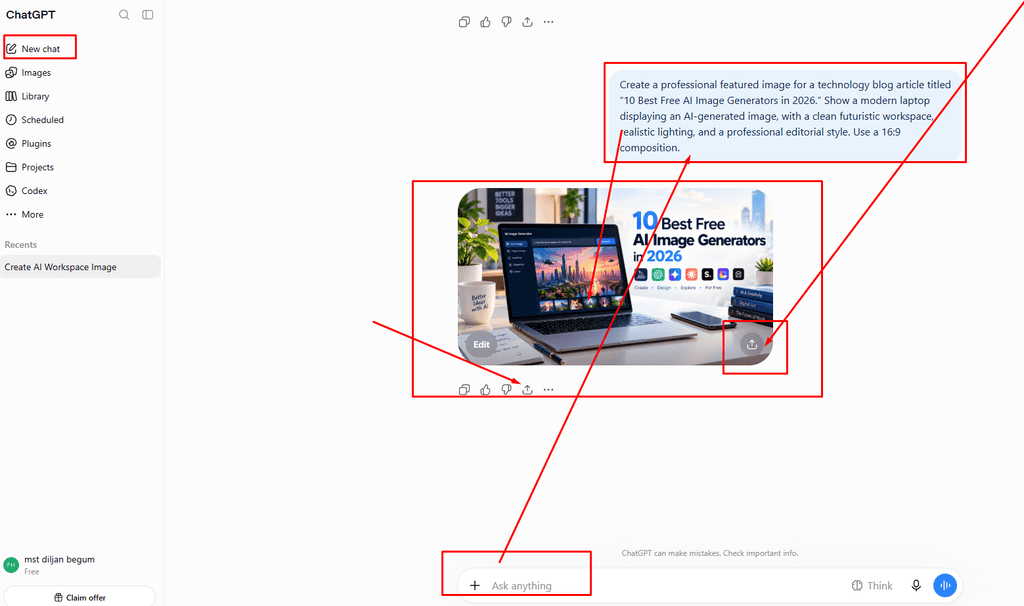
I sent it and it took a little time, after taking some time it created the image. I have tried to show you with a screenshot.
How to Write Better ChatGPT Image Prompts
The quality of your prompt can affect how closely the generated image matches your idea.
You do not need an extremely long prompt. Instead, focus on the details that matter.
A useful prompt can include:
- Main subject
- Location or environment
- What the subject is doing
- Visual style
- Lighting
- Camera perspective
- Composition
- Aspect ratio
- Important text
- Background
- Color preferences
For example, instead of writing:
Create an AI image.
You can write:
Create a realistic professional image of a small business owner working on a laptop in a modern office, using AI tools for marketing. Natural window lighting, clean desk, realistic photography, cinematic composition, professional technology-blog style, 16:9.
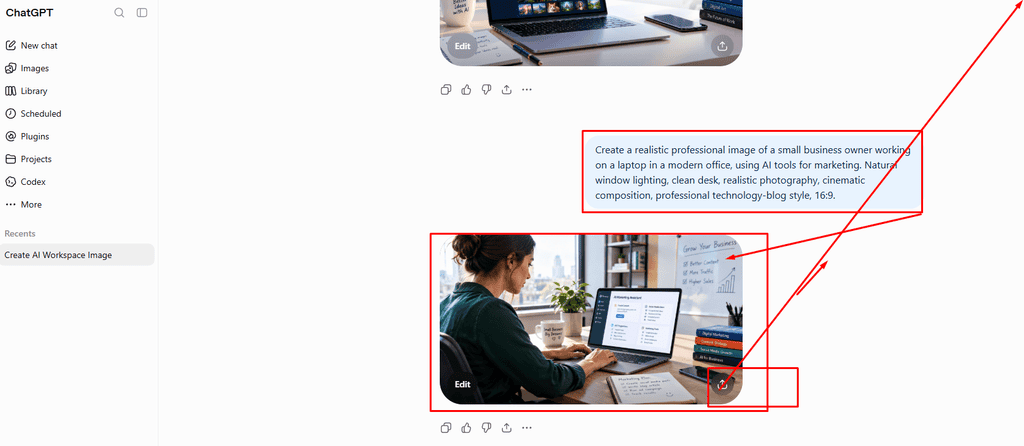
The second prompt gives ChatGPT much more information about what you want.
OpenAI’s guidance recommends focusing on the image’s purpose, main subject, action, environment, and desired visual style, adding specific constraints such as framing or lighting when they matter.
How to Create Images for Blog Featured Images
ChatGPT Image Generator can be especially useful for bloggers and website owners.
A featured image is usually displayed at the top of a blog article, so it should clearly communicate the topic of the article.
For example, if your article is about AI image generators, you could use:
Create a professional 16:9 featured image for a technology blog article titled “ChatGPT Image Generator: How to Create AI Images in 2026.” Show a modern computer screen displaying several AI-generated images, futuristic but clean design, realistic lighting, professional technology website aesthetic, high detail.
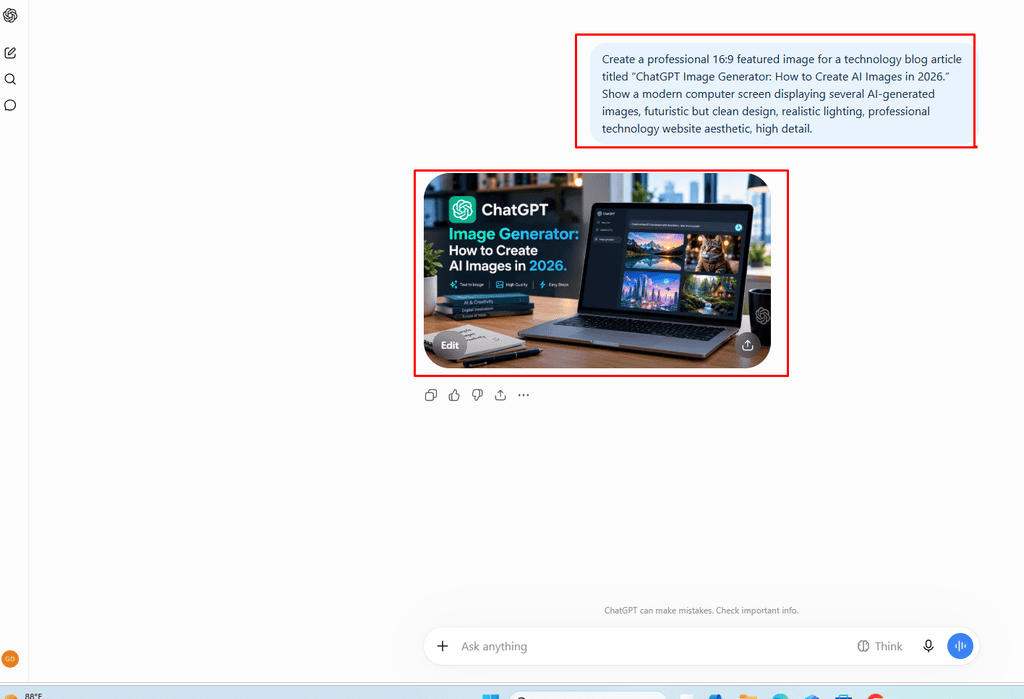
You can then ask ChatGPT to make changes if the first result does not look right.
For example:
Make the image more realistic and professional.
Or:
Remove the extra objects from the desk and make the laptop the main focus.
Or:
Make the composition cleaner and leave some empty space on the left for the article title.
This iterative process is one of the useful aspects of ChatGPT Images because you do not necessarily need to start from the beginning every time you want a change.
How to Edit an Existing Image With ChatGPT
ChatGPT is not limited to creating images from scratch.
You can upload an existing image and tell ChatGPT what you want to change.
For example, you can upload a product photo and ask:
“Remove the background and place the product on a clean modern studio background.You can also request changes such as:Change the background to a professional office.Remove the object on the right side.Make the lighting brighter.Add a soft shadow underneath the product.Change the image to a 16:9 composition.”

ChatGPT Images supports both direct conversational editing and more targeted editing through its image editor. You can select an area of an image and describe what should be changed.
Editing a Specific Part of an Image
The editor allows you to select a particular area of an image and describe the change you want.
For example, imagine you have a product image where the background looks messy.You can select the background and ask:Replace this background with a clean white studio background while keeping the product unchanged.The editor can apply the requested change to the selected area.
However, selections are not always perfectly precise, so an edit can sometimes affect areas outside the exact selection.If that happens, you can simply ask ChatGPT to correct the result.rect the result.
Adding Text to AI-Generated Images
One useful capability of ChatGPT Images is the ability to add text inside an image.
This can be useful for:
- Social media graphics
- Posters
- Promotional graphics
- YouTube thumbnails
- Event announcements
- Blog graphics
- Advertisements
- Infographics
For example:
Create a modern promotional poster for a coffee shop. Add the headline “Fresh Coffee Every Morning” and a smaller line saying “Open 7 AM – 9 PM.”

ChatGPT Images can follow instructions to add text and other details within the generated image.
For important business graphics, however, it is still a good idea to carefully inspect the final image for spelling, layout, and readability before publishing it.
Creating Transparent Backgrounds
Another useful feature is transparent background generation.
For example, if you sell a product online, you could upload a product photo and ask:
Remove the background and create a transparent PNG-style product image while keeping the product unchanged.
Transparent backgrounds can be useful for:
- Product listings
- Logos
- Website graphics
- Presentations
- Marketing materials
- Social media designs
ChatGPT Images supports instructions to make the background transparent.
Changing the Aspect Ratio
Different platforms require different image sizes.A blog featured image may work well in a wide landscape format, while an Instagram or other social-media post may require a different composition.
ChatGPT Images supports different aspect ratios through its image-generation experience. You can use the aspect-ratio picker where available or specify the desired ratio in your prompt.
For example:
Create this image in a 16:9 landscape format.
Or:
Create a vertical 9:16 social media image.
You can also ask ChatGPT to regenerate an existing image using a different aspect ratio through the editor.
Creating Images From Templates
ChatGPT Images 2.5 also introduced templates that make it easier to create certain types of visual designs. Instead of starting with a completely blank prompt, you can use a ready-made template as a starting point and customize it according to your needs.
To get started, open the Images section in ChatGPT, select Templates, and choose a category that matches the type of image you want to create. You can then customize the template by describing your preferred text, colors, design elements, layout, and visual style.
Templates are especially useful when you already know what type of visual you want but don’t want to build the entire design from scratch. They provide an initial structure that you can modify and personalize.
For example, if you want to create a poster, a template can give you a basic layout with space for a headline, supporting text, and visual elements. You can then customize the message, typography, colors, imagery, and overall style to match your requirements.
Similarly, a logo template can provide a basic design direction that you can refine with your preferred brand name, symbols, colors, and visual style.
Using templates can save time and make the image creation process easier, particularly for users who want professional-looking results without having to write a highly detailed prompt from scratch.
Turning a Sketch Into an Image
On the ChatGPT mobile app, users can also create an image from a sketch.
You can open the message box, type @, select Sketch, and draw your idea. You can then describe what you want ChatGPT to create from that sketch.
“For example, you could draw a simple house and write: Turn this sketch into a realistic modern house surrounded by trees, with warm evening lighting.ChatGPT can use the sketch as a visual reference while following your written instructions.”
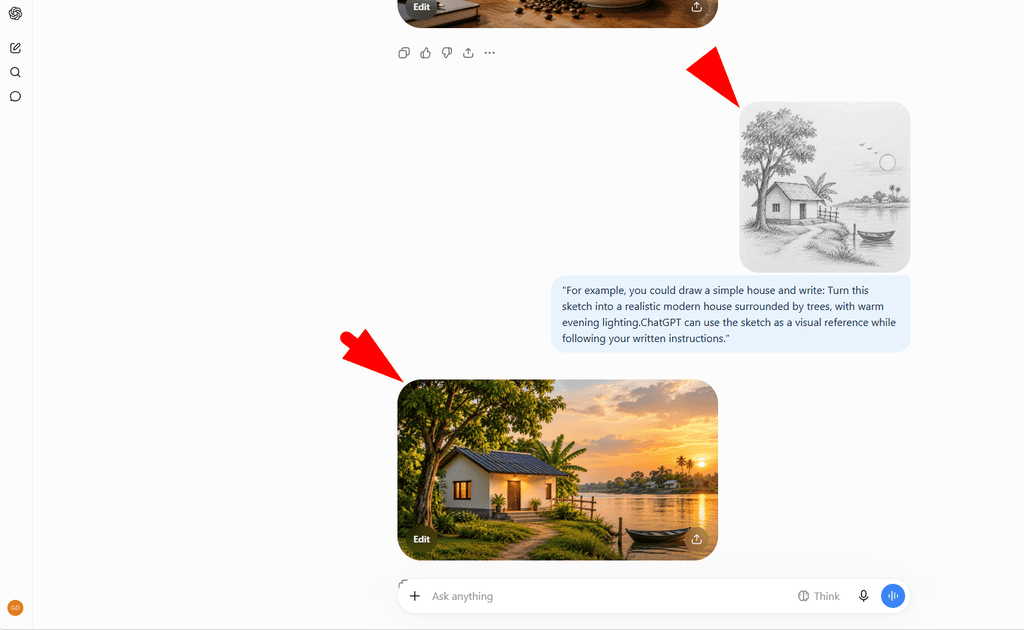
This can be useful when you have an idea in your head but find it difficult to describe precisely with words.
Using ChatGPT for Product Images
Small businesses can also use ChatGPT Images for product marketing.
Suppose you sell a mug.You can upload a photo of the mug and ask:
Create a professional product advertisement using this mug. Place it on a modern wooden table with a warm coffee-shop background, natural lighting, realistic commercial photography, and enough empty space for promotional text.
You can then request additional changes.
For example:
Make the product larger and move it to the center.
Or:
Create a clean e-commerce product image with a white background.
This allows a small business owner to create different marketing visuals without having to photograph every possible scene.
Creating Social Media Images
Social media content often requires fresh visuals.
ChatGPT can help create images for:
- Facebook posts
- Instagram posts
- LinkedIn graphics
- Pinterest content
- Promotional campaigns
- Announcements
- Quotes
- Educational posts
For example:
Create a professional Instagram graphic explaining three benefits of using AI for small businesses. Modern technology style, clean layout, readable text, professional composition, vertical format.
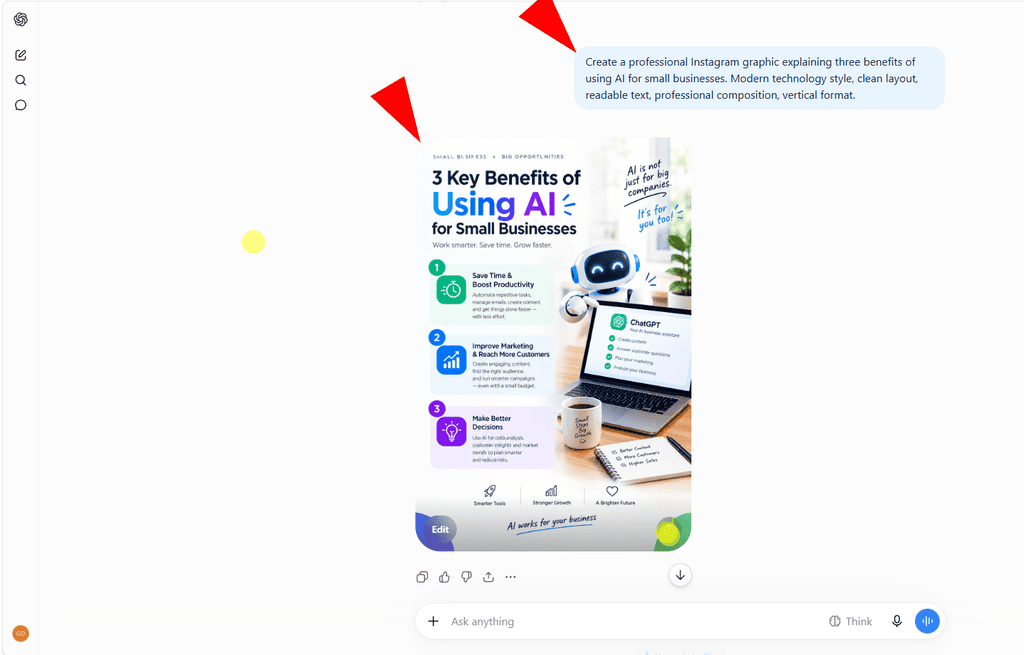
You can then request revisions until the design fits your needs.
Creating YouTube Thumbnails
ChatGPT Images can also be used to create concepts for YouTube thumbnails.
For example:
Create a dramatic YouTube thumbnail about AI image generation. Show a surprised creator looking at a computer screen displaying multiple AI-generated images, high contrast, dynamic composition, large readable headline area, 16:9 format.
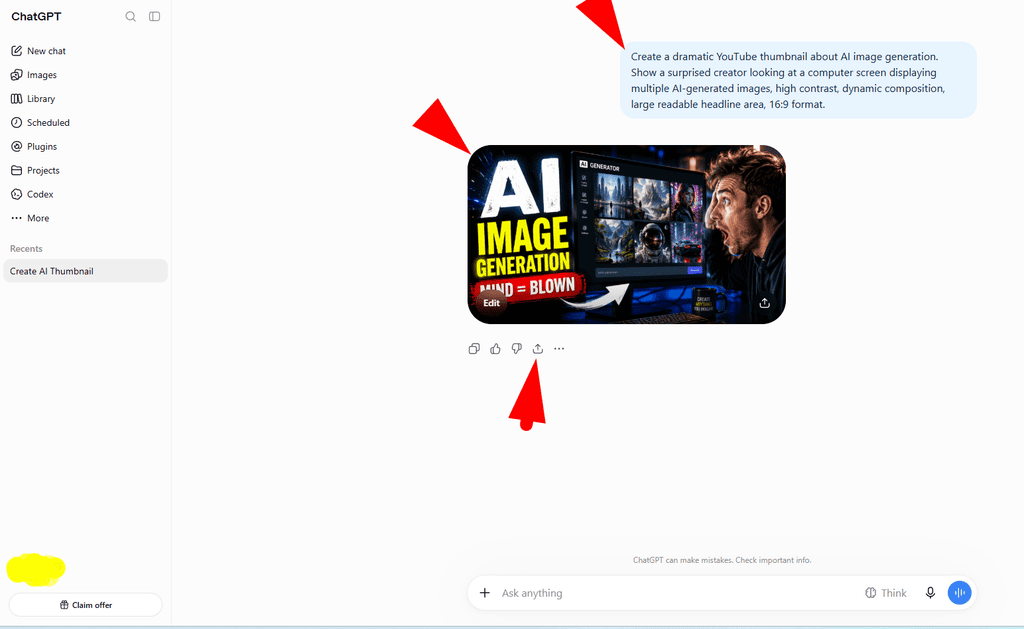
After the image is generated, you can ask for changes to the composition, subject, background, or text.
For a final thumbnail, always check that the text remains readable at small sizes.
Creating Images for Presentations
AI-generated images can also be useful for presentations.
Instead of searching through stock-photo websites, you can describe the visual you need.
For example:
Create a professional illustration showing how artificial intelligence helps a small business automate marketing, customer service, and content creation. Clean corporate presentation style, wide horizontal composition.
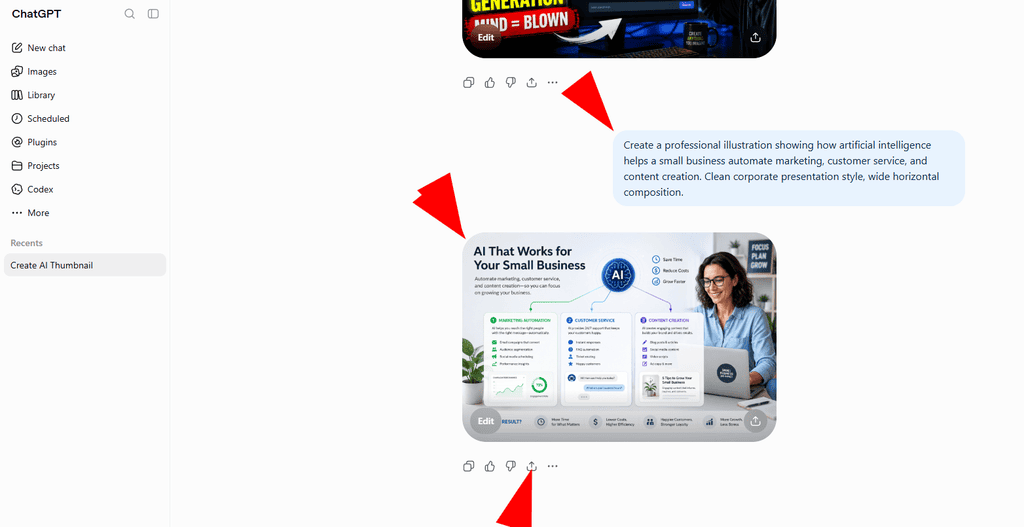
This can help create visuals that are more closely matched to the subject of your presentation.
ChatGPT Image Generator for Small Businesses
Small businesses can use AI-generated images in many practical ways.
A business owner can create promotional graphics, product visuals, social media content, website images, advertisements, posters, and other marketing materials.
For example, a local restaurant could create a promotional image for a new menu item.A clothing business could create lifestyle-style product scenes.A freelancer could create portfolio graphics.An online store could create different backgrounds for product photography.
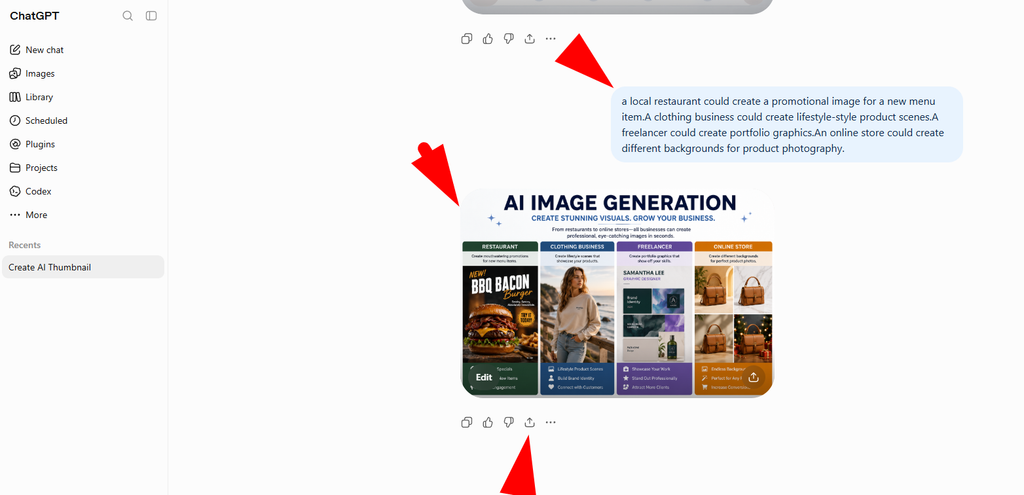
This does not mean AI automatically replaces every part of marketing. The business owner still needs to provide accurate product information, choose appropriate messaging, review the generated content, and make sure the final image represents the actual business or product correctly.
How to Improve an AI-Generated Image
The first generated image does not always have to be the final version.One of the easiest ways to improve an image is to give ChatGPT specific feedback.
Instead of saying:
Make it better.
Try something more specific:
Make the lighting softer, reduce the number of objects in the background, make the main subject larger, and leave more empty space around the headline.
You can also request multiple variations.
For example:
Create three different versions with different compositions while keeping the same subject and overall style.
This makes it easier to explore different creative directions.
OpenAI specifically describes image generation as an iterative process where users can request variations, adjust composition or size, and explore different visual directions.
Common Mistakes When Writing Image Prompts
A common mistake is being too vague.
For example:
Make a business image.
This does not tell the AI what type of business, what subject should appear, what environment should be used, or what visual style is required.
A better prompt would be:
Create a realistic professional image of a small business owner working on digital marketing from a modern office. Show a laptop, smartphone, and notebook on the desk, with natural daylight and a clean technology-focused environment. Use a wide 16:9 composition.
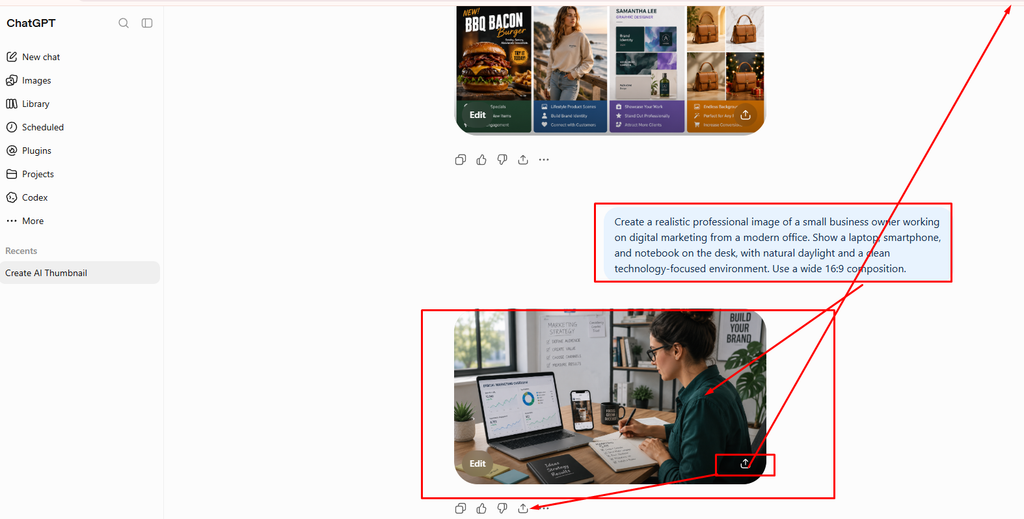
Another mistake is putting too many unrelated ideas into one prompt.
If the image has too many requirements, the final composition may not match what you imagined. It is often better to start with the main concept and then make additional edits.
ChatGPT Image Generator vs Traditional Design Tools
Traditional design software gives users detailed manual control over individual design elements.
AI image generation works differently.
Instead of manually drawing or arranging every element, you describe what you want and allow the AI to create the initial visual.
This can dramatically reduce the time required to create a concept.
However, AI-generated images should still be reviewed carefully. Small details, text, object placement, or visual consistency may not always be exactly what you intended.
The best workflow is often to use AI for rapid creation and iteration, then review and refine the final result before publishing.
Where Are ChatGPT Images Saved?
Images created with ChatGPT are automatically saved under the Images section, where users can return to previously created images. From there, an image can be opened, copied, saved, or shared.
This makes it easier to revisit an old image instead of searching through previous conversations manually.
If you need to download an image, you can use the Save option from the image controls.
Can You Share an Image Prompt?
Yes.
ChatGPT also supports sharing the prompt for a generated image. This can allow someone else to create their own version of an image using the same prompt structure.
This can be useful for teams, content creators, designers, and marketers who want to share repeatable image-generation instructions.
ChatGPT Images 2.5
The current ChatGPT Images experience is based on ChatGPT Images 2.5.
OpenAI introduced the 2.5 experience with improvements including sharper details, more precise editing, and faster image generation. It also added new creation and sharing options, including templates, sketch-based image creation on mobile, and prompt sharing.
These improvements make the tool useful not only for generating a single image but also for creating an image, editing it, changing its format, and refining it through multiple iterations.
Final Thoughts
ChatGPT Image Generator has made AI image creation much more accessible.
You do not need to be a professional designer to create a blog featured image, product visual, social media graphic, presentation image, poster, or creative concept. You can describe your idea in ordinary language and then refine the result through additional instructions.
The current ChatGPT Images experience also goes beyond simple text-to-image generation. Users can upload existing images, edit specific areas, change aspect ratios, add text and details, create transparent backgrounds, use templates, and on mobile even turn a sketch into a finished image.
For bloggers, content creators, marketers, and small business owners, this can save time during the visual-content creation process.
The most important skill is not writing an extremely complicated prompt. It is explaining what you actually want: the subject, purpose, setting, style, composition, and important details. Once the first image is created, you can continue refining it until it better matches your goal.
ChatGPT Image Generator is therefore more than a tool for making random AI pictures. Used properly, it can become a practical part of a content-creation workflow for websites, social media, marketing, business, presentations, and creative projects.