
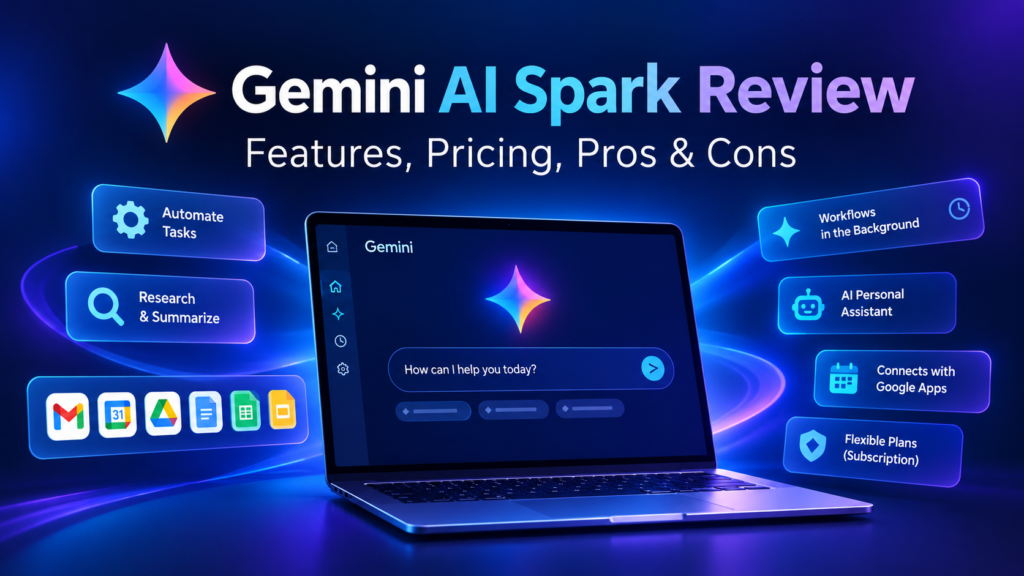
Gemini AI Sparks Review
If you still think of AI as a tool where you ask a question, get an answer, and then do everything yourself, Gemini Sparks changes that. Instead of only generating answers, Sparks works with your connected apps — Drive, Gmail, Calendar, YouTube — and attempts to complete multi-step tasks for you, not just explain how.
In this review, I tested Gemini Sparks across real workflows: creating Google Drive documents and spreadsheets, finding and renaming files, organizing Gmail, analyzing a YouTube channel, scheduling recurring automations, and running a full client-meeting workflow.
(Note: exact capabilities can vary by account, region, and plan.)
What Is Gemini AI Sparks?
Gemini Sparks is Google’s task-oriented AI mode. Instead of just responding to a question, you give it a goal, and it uses connected services — Google Drive, Docs, Sheets, Gmail, Calendar, YouTube — to work through the steps itself.
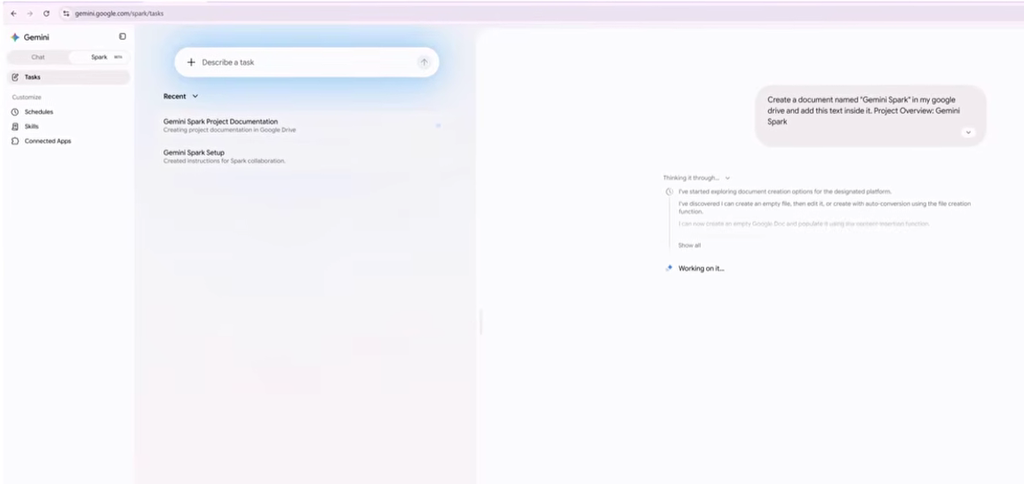
How to Access Gemini Sparks
Open Gemini as usual — if Sparks is available on your account, you’ll see it as an option alongside the normal chat mode. Select it to begin.
Selecting Sparks alone isn’t enough, though. For it to actually do things, it needs two more pieces: Memory and Connected Apps.
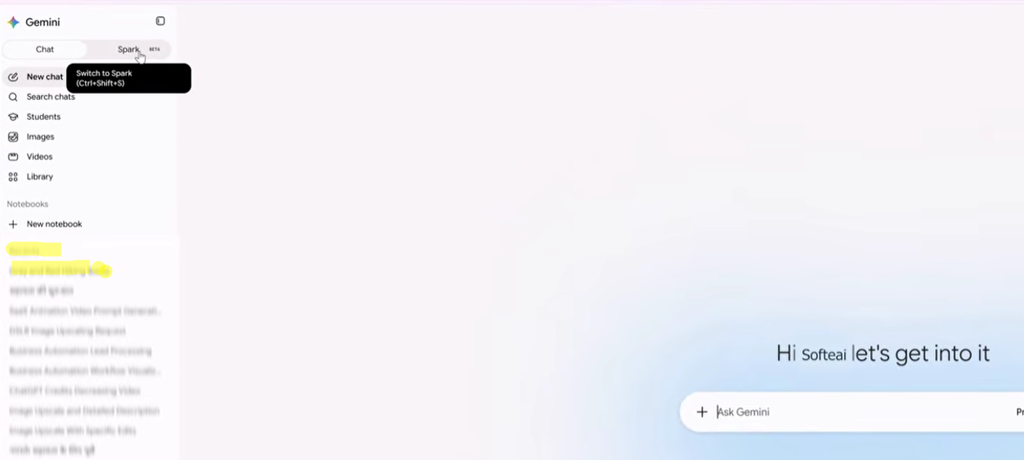
Gemini Sparks and Memory
Turning on Memory (or Personal Intelligence, if your account shows it) lets Gemini carry context from earlier conversations into new tasks — your ongoing projects, past instructions, recurring preferences. Memory alone doesn’t give Gemini the ability to touch your files or inbox, though — that’s what Connected Apps are for.
What Are Connected Apps?
Connected Apps give Sparks access to real tools: Gmail, Calendar, Drive, Docs, Sheets, Tasks. The formula is simple:
AI + Context + Connected Tools + Clear Instructions = Useful Workflows
Connect only what a given workflow actually needs — more connected apps just means more access than necessary, not better results.Gemini Sparks-Document creation results.
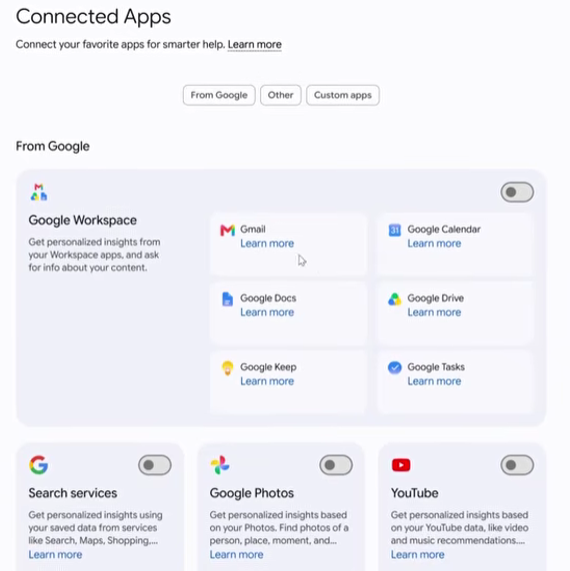
What Can Gemini Sparks Actually Do? — 8 Real Tasks
1. Create a Document in Google Drive
Instead of manually opening Drive, creating a doc, renaming it, and pasting content, I gave Sparks this:
“Create a document named Gemini Spark in my Google Drive and add this text to the document.”
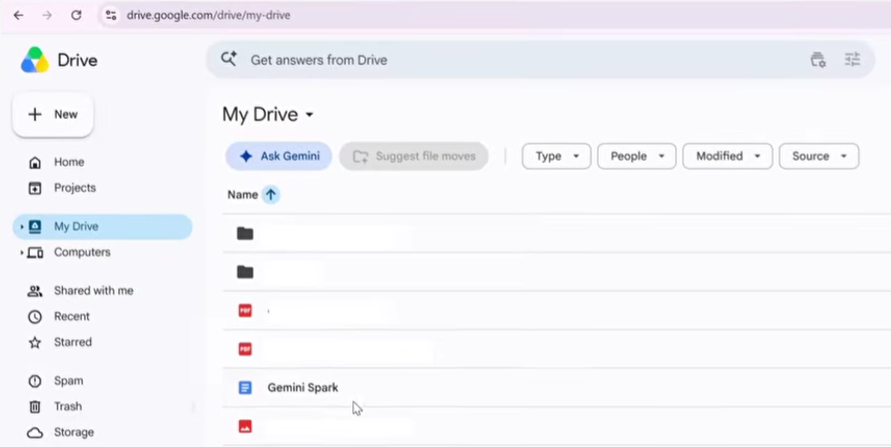
The document was created correctly — verify the name, formatting, and content once it’s done.
2. Create a Google Sheet
Same idea, for spreadsheets:
Create a spreadsheet named [X] with two columns: [Y] and [Z]
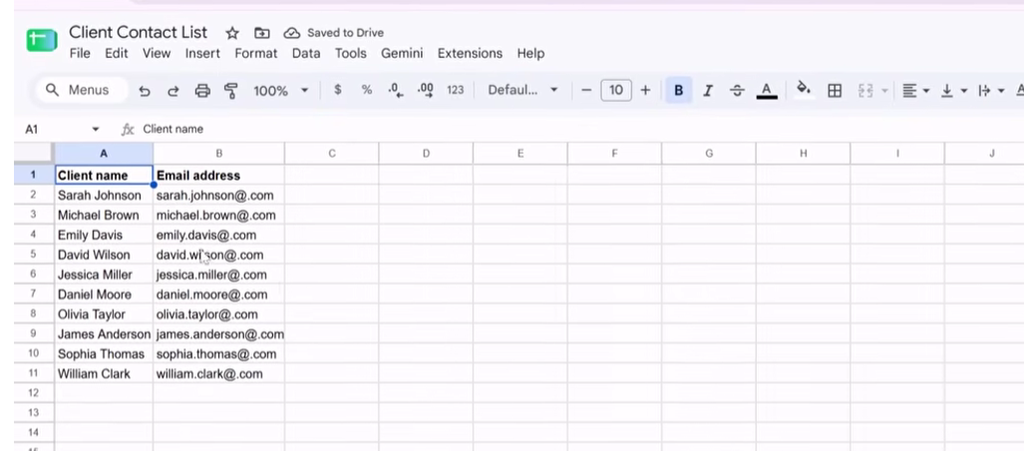
Check the sheet name, columns, and data after it’s built.
3. Find and Rename an Existing Document
Sparks can also modify existing files:
Find the document named Gemini Spark in my Google Drive and rename it to Gemini Spark Prompt Guide.Gemini Sparks-Document creation results.

This is a Find → Identify → Modify workflow — Sparks isn’t limited to creating new content, it can act on what already exists.
4. Organize Gmail
For inbox cleanup, I used:
Identify promotional or unwanted emails in my Gmail, create a separate label for them, and organize the selected emails under that label. Do not delete any emails without my approval.
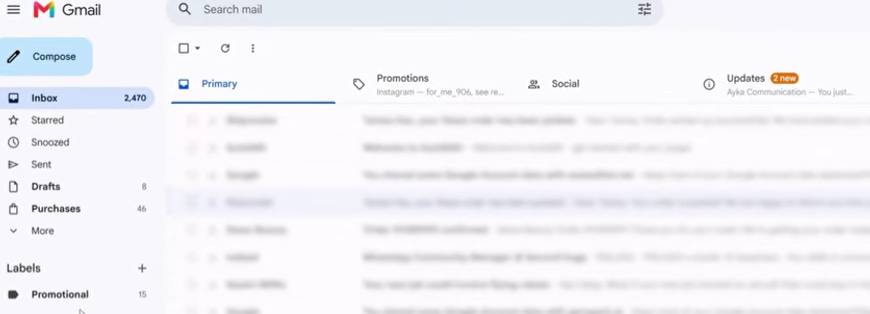
That last line — “don’t delete without approval” — matters. Organizing and permanently deleting are two very different actions, and keeping deletion behind human approval is the safer default.
5. Analyze a YouTube Channel
For content creators:
Analyze my YouTube channel. Collect the video title, video link, views, and upload date. Identify the top-performing videos and create a spreadsheet with the results.
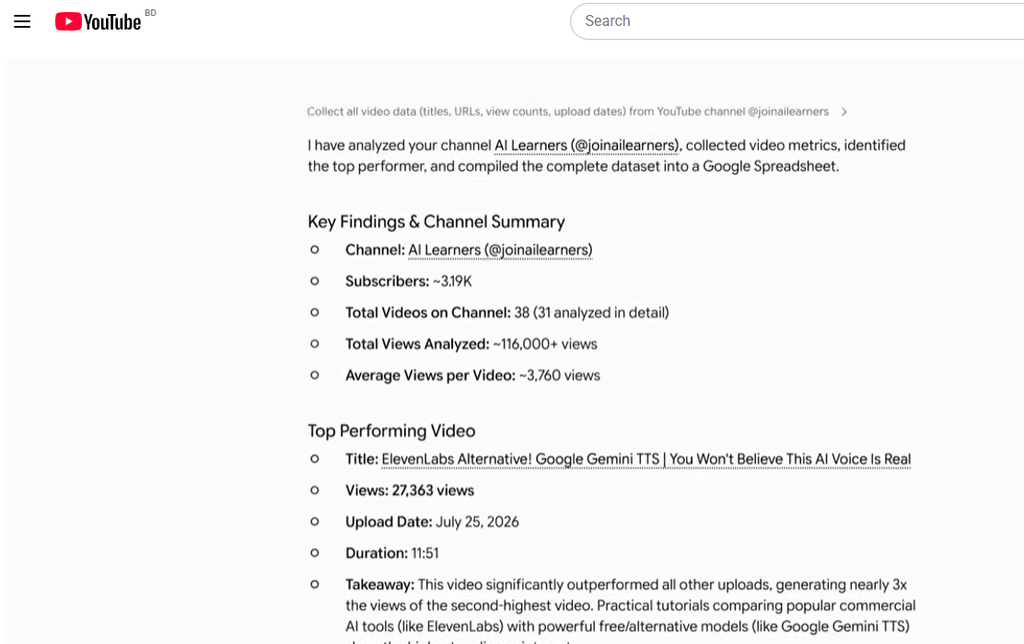
Cross-check the numbers against your channel’s own “Popular videos” section before trusting them fully.
6–7. Scheduling: Daily Email Check Automation
Beyond one-off tasks, Sparks supports recurring schedules:
Task + Time + Frequency = Repeatable Workflow
I set up a daily 8:00 AM check.
Scan the last three days of emails. Identify client or urgent project-related emails. Provide short summaries. If there are meeting requests, check my calendar and prepare a draft — but don’t send anything.
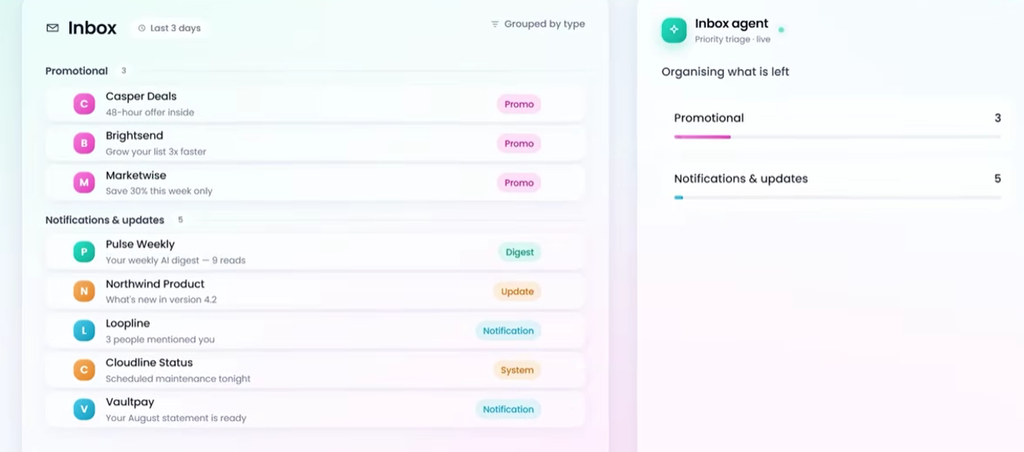
Use “Run Now” to test the automation immediately instead of waiting for the next scheduled run, and check its output against your actual inbox.
8. Full Client Meeting Workflow
This is where Sparks gets genuinely useful. A client emails asking for an urgent meeting tomorrow at 11 AM.
The flow:
Client emails → Sparks reads it and identifies it as a meeting request → checks calendar → finds 11 AM is booked, suggests 2 PM and 4 PM instead → drafts a reply → I review and send → client replies with a new time → Sparks checks the calendar again → confirms → creates the calendar event with the guest and a Meet link.
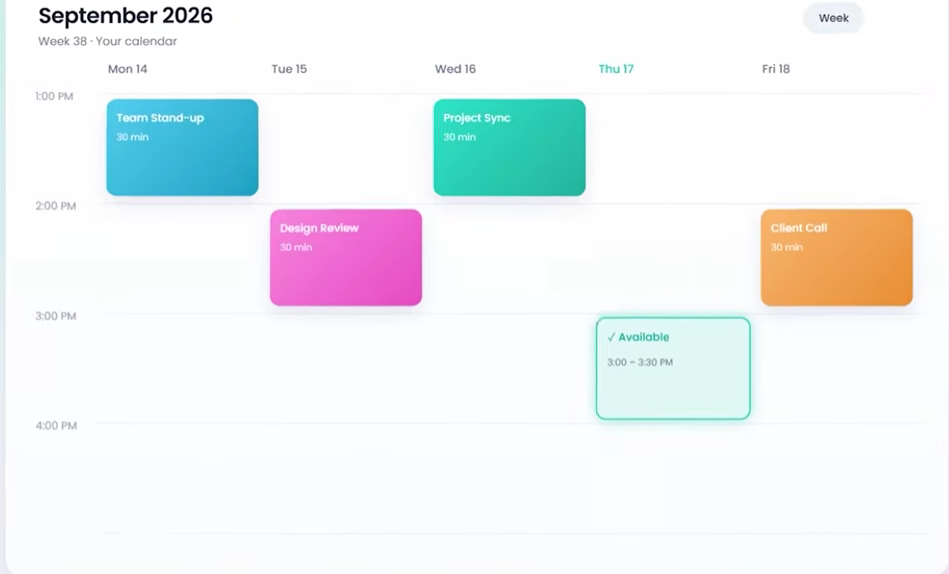
Calendar availability check.
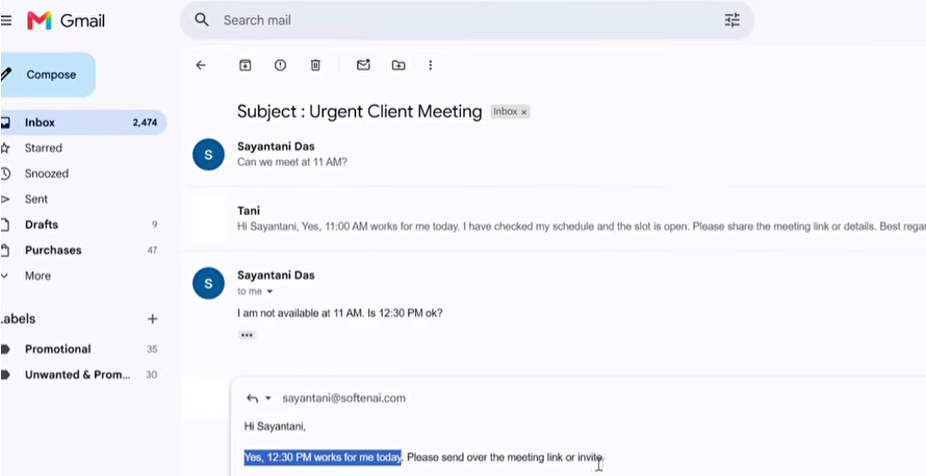
The AI moved from communication to actual execution here — email → calendar → confirmed meeting — with sending and final confirmation left in my hands.
Task vs. Schedule vs. Skill
- Task — do this now.
- Schedule — do this automatically, on a set time/frequency.
- Skill — turn a repeated workflow (e.g., “check email → find client messages → check calendar → draft reply”) into a reusable shortcut, so you’re not rebuilding the prompt from scratch each time.
Availability of Skills depends on your account and rollout.
Safety: Keep Human Approval on Sensitive Actions
Sparks can move fast, but not every action should happen without a check. Keep human review in the loop for:
- Email deletion
- Meeting cancellation
- File modifications
- Payments
- Client communication and business information
If Sparks flags 143 promotional emails, review the list before deleting — “delete those” is ambiguous, and clarifying first avoids mistakes.
Practical rules:
- Connect only the apps a workflow actually needs.
- Never let deletion, sending, or payments happen without approval.
- Verify AI output — especially on emails, calendars, and client-facing content.
- Give specific instructions: which emails, what counts as “important,” what’s off-limits.
- Automate the repetitive parts, keep judgment calls with yourself.
Gemini Sparks vs. Traditional Chatbots
| Traditional Chatbot | Agent-Style Workflow (Sparks) |
|---|---|
| Gives an answer | Works toward a goal |
| Generates content | Uses connected tools |
| One response | Multi-step process |
| Explains what to do | Attempts to do it |
| Conversation-only context | Can touch real apps |
Who Should Use Gemini Sparks?
- Freelancers — client email management, scheduling, file organization
- Content creators — YouTube data collection, research, organization
- Small business owners — email, scheduling, admin
- Students — repetitive info management
Before automating anything, ask: Is this repetitive? Rule-based? Does it touch sensitive info? Does it need human judgment?
Pros and Cons
Pros: goes beyond Q&A, works with real Google services, handles repetitive workflows, supports scheduling, can coordinate multi-step tasks (like the client-meeting flow above).
Cons: availability varies by account/region/plan, requires app permissions, output still needs verification, not every task should be automated.
Final Verdict
Gemini Sparks is a real step from “question → answer” toward “goal → plan → action.” The client-meeting workflow above is the clearest proof: it moved from reading an email to an actual confirmed calendar event, with the sensitive steps (sending, confirming) still in my control.
If you regularly deal with email, documents, spreadsheets, calendars, or repetitive research, it’s worth setting up — start with one workflow, connect only what it needs, and keep approval on anything irreversible.