
Introduction to WordPress Masterclass

WordPress has evolved significantly over the years, with new features, tools, and AI-powered capabilities being introduced into the ecosystem. Because of these changes, learning WordPress today requires an updated understanding of how the platform works and how to customize it effectively.
In this WordPress Masterclass, we will explore WordPress customization from the ground up. The goal is to help beginners understand WordPress not only as a website-building platform but also as a complete Content Management System (CMS).
Before you start building and customizing a WordPress website, it is important to understand some fundamental concepts. You should know what WordPress is, how a Content Management System works, and the difference between pages, posts, themes, and plugins.
You will also learn how the overall WordPress ecosystem works and how to use its different features to create and manage a website.
By following this guide step by step, you can build a strong foundation in WordPress and gain a better understanding of how to create, customize, and manage your own website.
I am purchasing domain hosting from Hostinger. If anyone of you wants to do it, you can do it from my Hostinger referral link. Then you will get a commission.
Free WordPress Installation
To build a WordPress website, you generally need two things: a domain name and web hosting. After connecting the domain and hosting, you can install WordPress and start building your website.
However, if you are just learning WordPress and do not have a budget for a domain and hosting, you do not necessarily need to purchase them. You can install a local WordPress environment on your computer and practice everything for free.
Install WordPress Locally with Local
One of the easiest ways to run WordPress on your computer is by using Local, a tool designed to make WordPress development simple. It allows you to create and manage WordPress websites directly on your computer without purchasing a domain or hosting.
Another option is Studio by WordPress.com, which can also be used to create a local WordPress environment. However, depending on your operating system and computer configuration, you may experience occasional performance or compatibility issues. For this tutorial, we will use Local because it provides a simple way to set up a WordPress website locally.
First, download Local for your operating system.Download Local
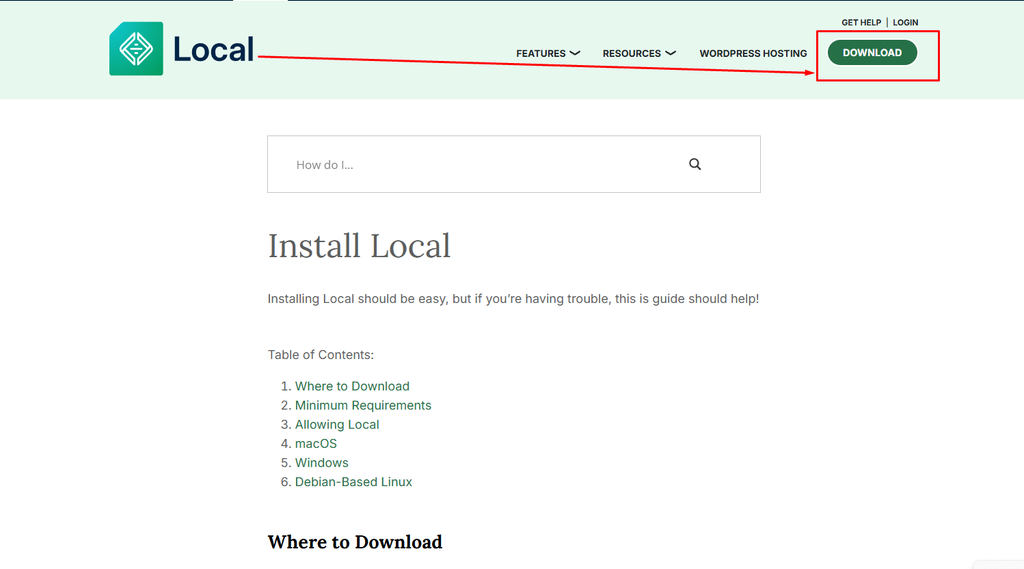
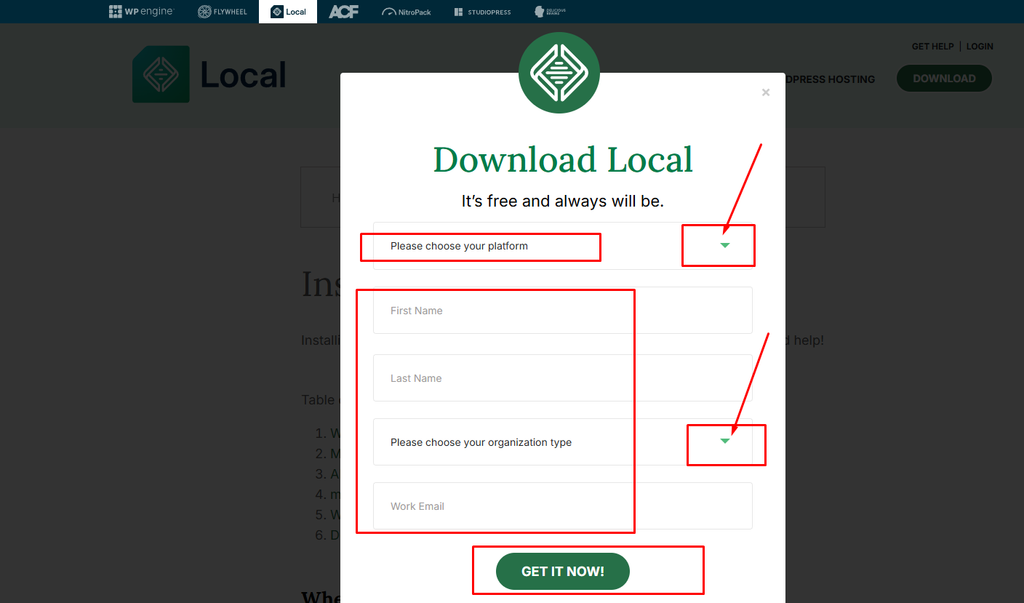
Select the appropriate platform, such as macOS, Windows, or Linux, and provide the required information during the download process.
Once the download is complete, install the application just like any other software on your computer. On macOS, for example, you may receive a DMG file. Open the file and drag the Local application into your Applications folder to complete the installation.
After installation, launch the Local application. You may be asked to accept the terms of service and configure a few basic preferences. You can choose your preferred default browser and other settings according to your requirements.
You do not need to change many advanced settings at this stage. The default options are usually sufficient for getting started.
Create a New WordPress Website
Next
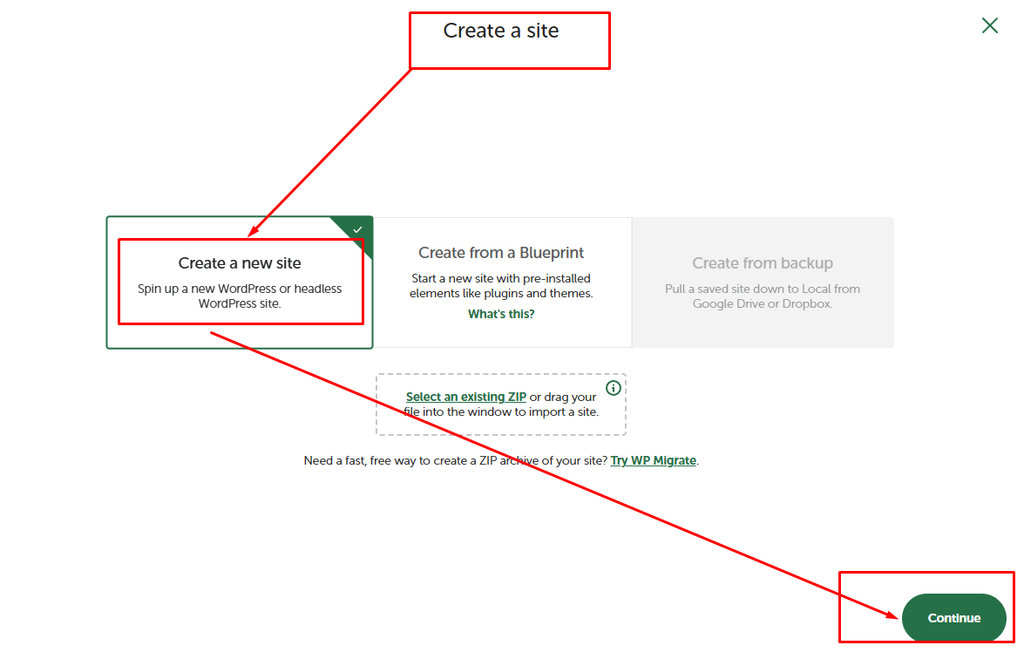
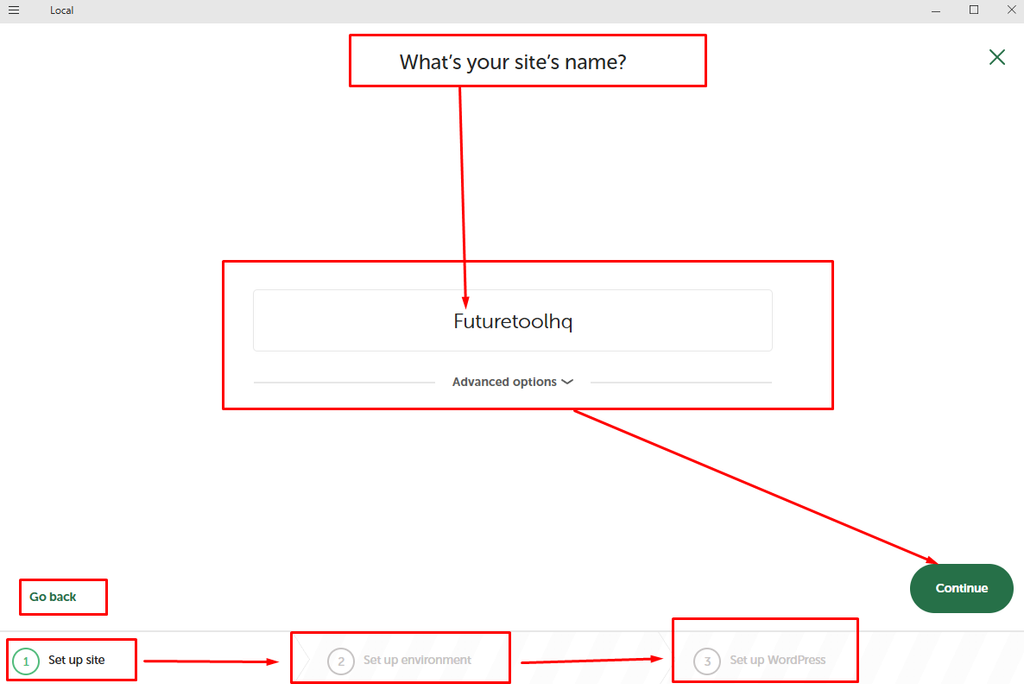
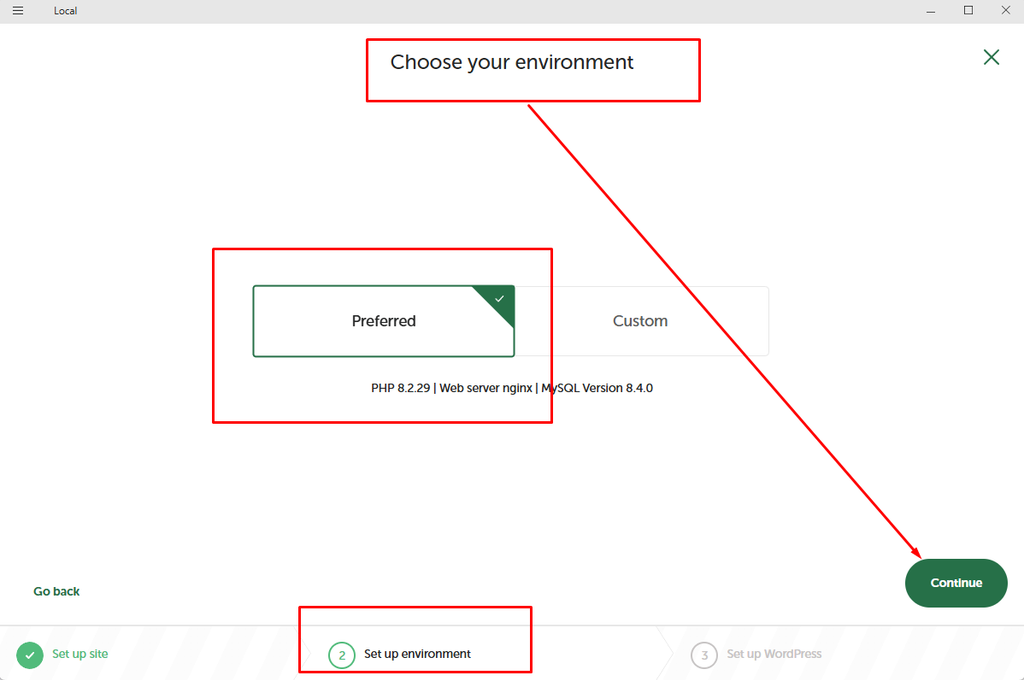
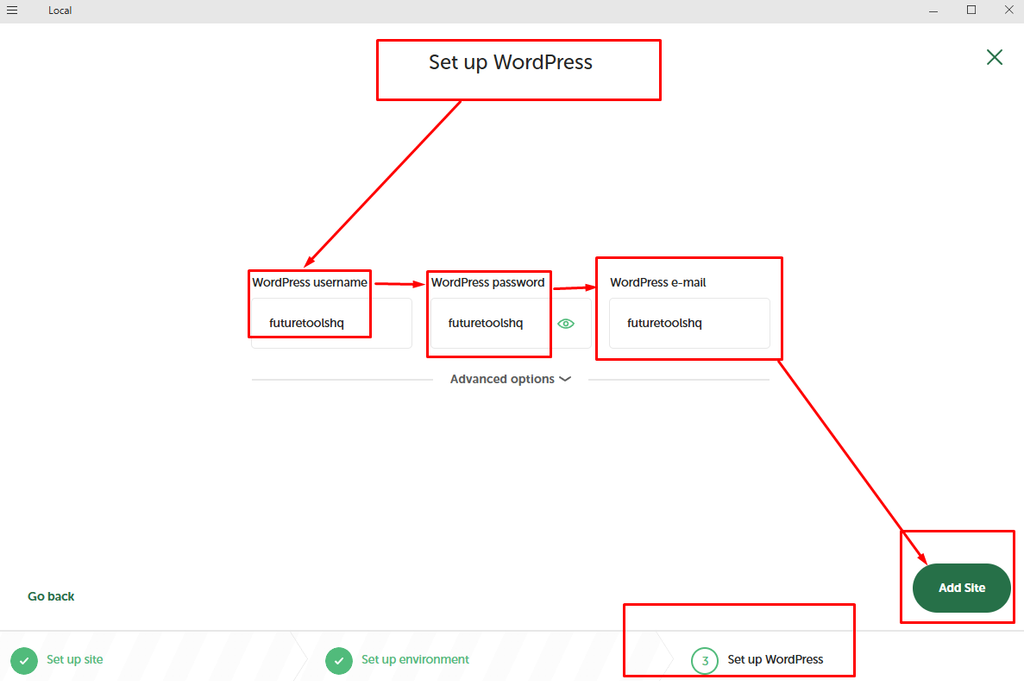

Once Local is installed and ready, you can create your first local WordPress website.
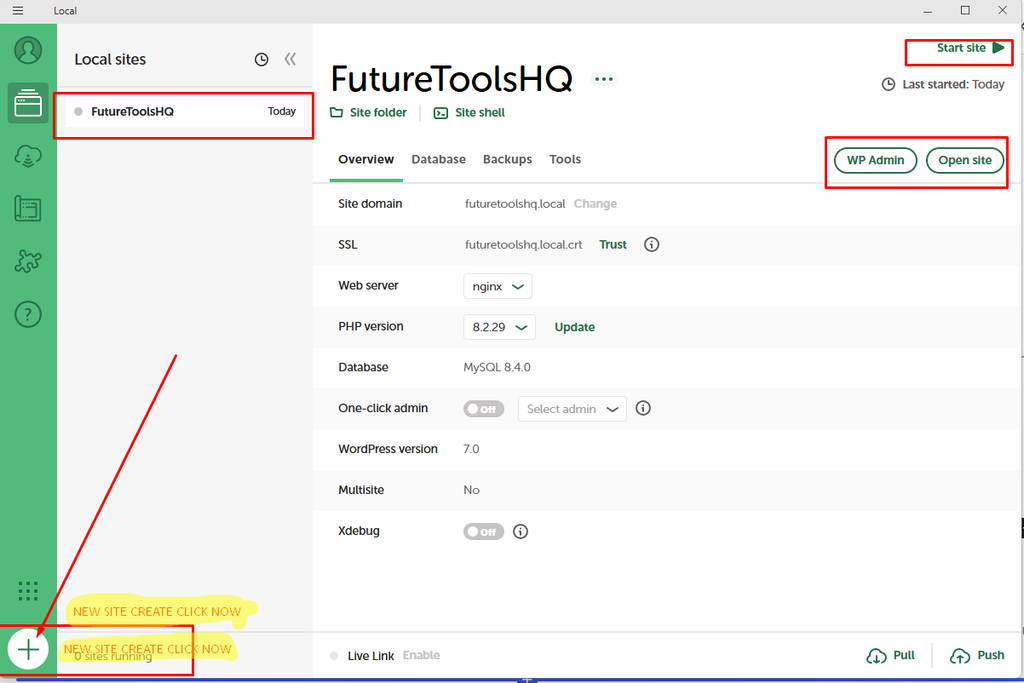
Simply open Local and click Create a New Site. From there, you can follow the setup process to create a fresh WordPress installation on your computer.
The major advantage of this method is that you can learn WordPress, experiment with themes and plugins, and practice website customization without purchasing a domain or hosting.
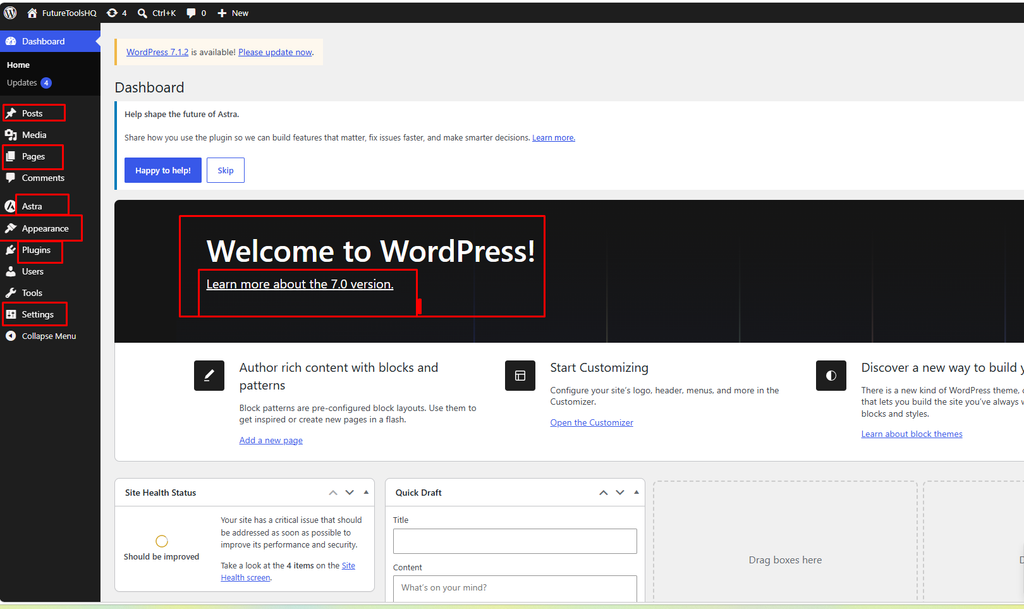
Now the first step of the WordPress masterclass is starting. You may be thinking where I got the screenshot I gave above. Before that I have given many more pictures above, there you have WP Admin, WP Admin. In the screenshot given above, if you click on WP Admin on the local site, any of your browsers will open. Whichever browser you select, it will open in that browser.
Once opened, this WordPress Welcome to WordPress will open in the browser. Maybe there you will have to give the WP Admin password, the ID password that you have, or it may need verification — you will do that. After doing that, this screenshot above — actually the main work starts here. Here I have marked some things, remember these few things well or watch a few times. This is mainly the work, the entire work will be done in this.
WordPress Complete Guide
I am writing some words about the WordPress full guide, please read attentively. First, install it locally on your own computer and practice by yourself without buying a full domain hosting. When you know a little by practicing, then you will develop your own site with domain hosting.
Look brother, now the question is – you can just develop a website by paying some money to a developer and that’s okay. Brother, if you develop it by paying money to a developer, the site becomes okay, I understand that.
Then currently with AI, with AI in one click or it is seen that within five, seven, ten minutes a complete site is done, this is also possible. But brother, developer or AI, neither is you yourself. If you yourself learn a little by giving one hour of time, learn a little about the site, do you know how much benefit you will get?
You made the site with a developer, no problem. You developed the site with AI, there is no problem in any of them. But if you learn a little, your own website yourself and do a little work or you are seeing your own things – which one worked how, which one did coding, which one did manually, which one is doing what, you have a problem here, where is the problem, okay, you have to know all these things.
After knowing, then if you can know this much, I mean if you can know a little bit of the complete matter of WordPress, if you can know the complete matter of WordPress, then it is seen that you can also question the developer, and if AI does a work, you can also catch it.
I am saying these words for this reason that if you want to make a website, if you want to make a website with WordPress, you need to know something about WordPress.

The first task in WordPress is to click on Appearance, from Appearance click on Themes, from Themes click on Add New Theme or Add Theme. After clicking, you can practice with any theme – Hello Elementor or any other theme. You will install a theme, and after installing, you will activate it.

“Click Active on the Hello Elementor theme”
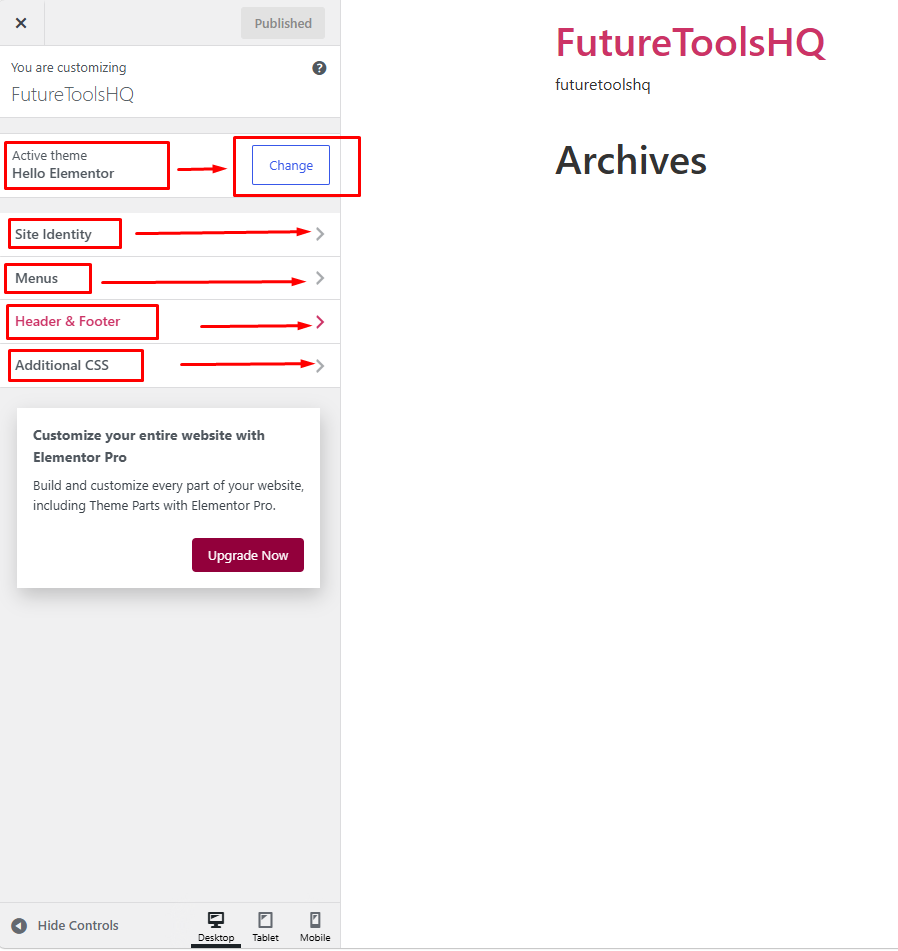
After Hello Elementor is installed, you will click on Customization. If you click on Customization, you can see a screenshot below. There you can change the Hello Elementor theme. If you need any other theme, you can change it. Site Identity, you can do the work of Site Identity. Then you have Menus. There is Header Footer. Then Additional CSS. All these things are given there.

Here I have shown what you can do in Site Identity. In Site Identity you can set the logo plus the site icon, these two. When your logo and site icon are set, then if you click on Publish, it will be published.
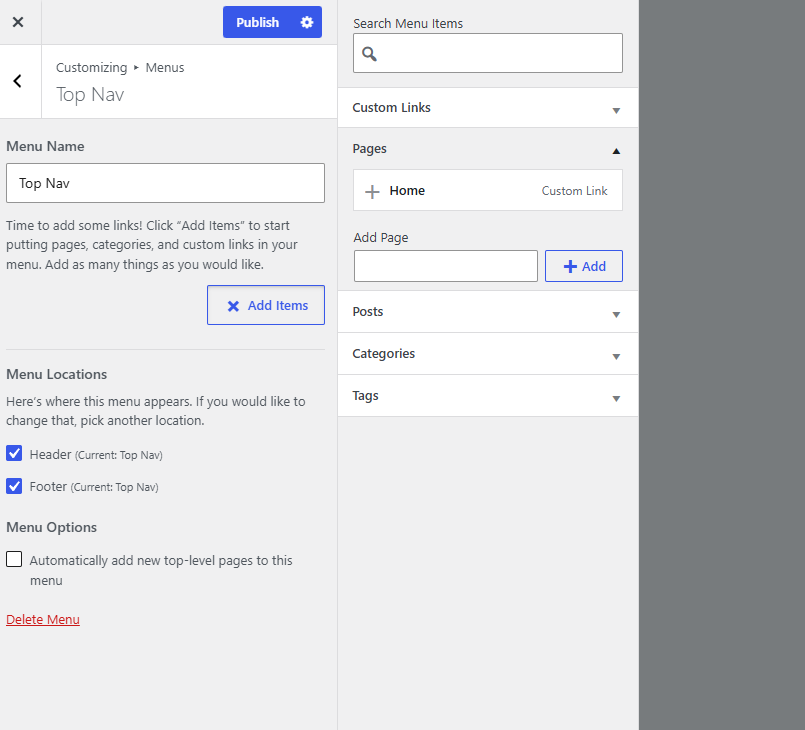
Whatever you need in the menu, you will set that in the menu. Okay. Now we will go to — uh, if we start customizing the site with Elementor, then we will need to install some plugins. Now we will go to plugin installation.
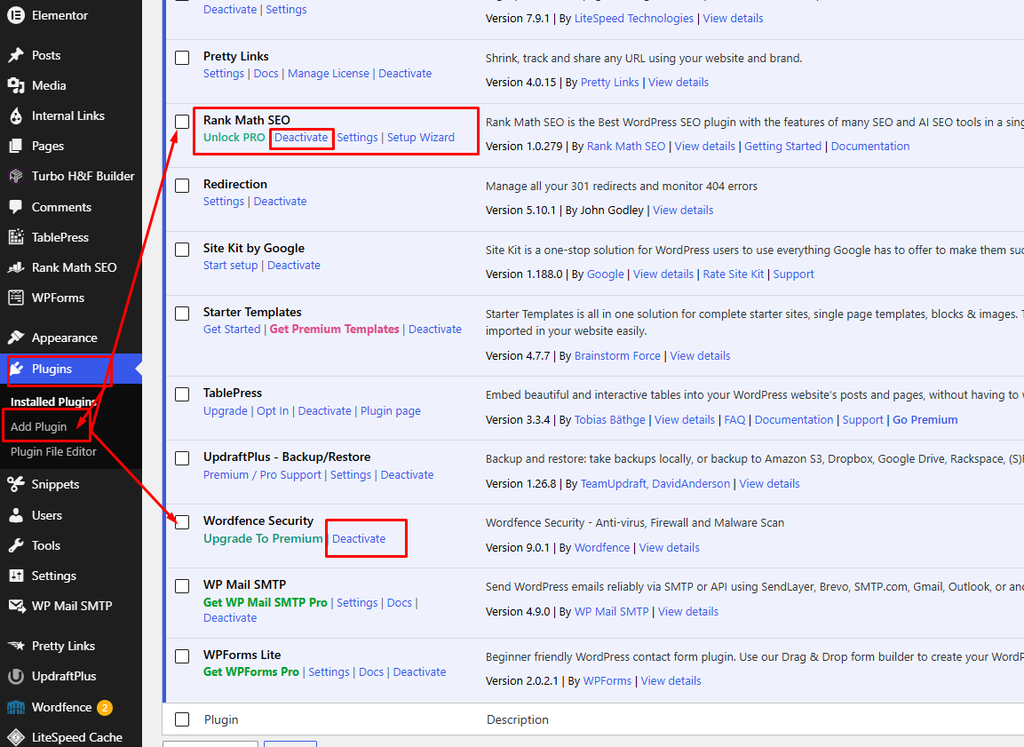
You will click on Plugins here, click on Plugins. After clicking, whichever plugins you need, you will install them. For which site you will do it, for what purpose you will do it, according to that site, yes, you will do the plugin.
And here I will show in a simple way, a plugin for header and footer, I will install a plugin and make the header and footer. And there is a home page, I will make the home page, I mean I will show the whole design through Pages, okay, I mean in a simple or easy way, I will show it as it is.
Header Footer Builder for Elementor.
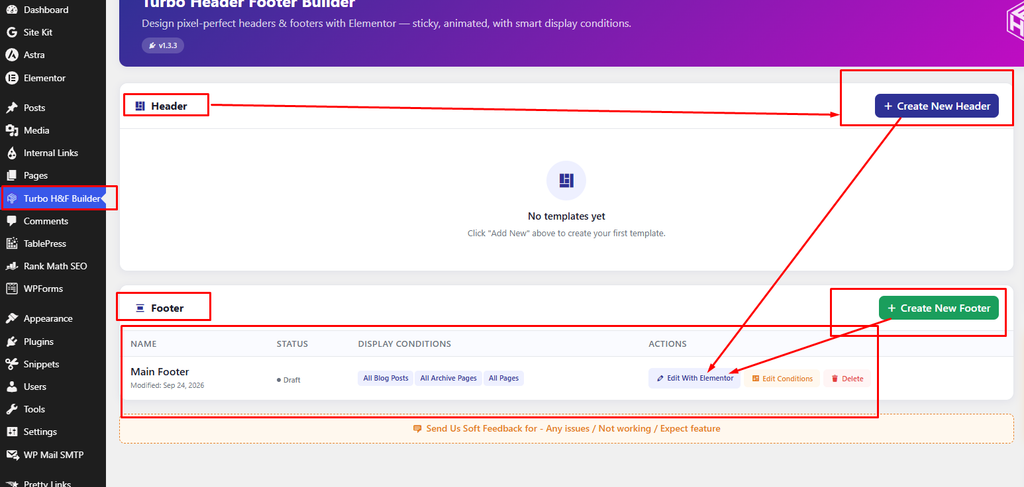
You will install the plugin that I told you to install for the Header Footer. After installing, when you click, click on Create New Header, then there you will set up whatever needs to be set up – like All Pages, All Block Pages, whatever. And it will be set up just like I have set up the footer. After setup, you will click on With Elementor / Edit with Elementor. After clicking, what will happen, I will then show you with a screenshot.

After clicking on ‘With Elementor’, it will show you a window like this. there you will click on the plus sign and first take a container. After taking the container, you will search for HTML. By searching for HTML, you will drag and drop the HTML into your container.
And then you will tell ChatGPT that – I will create a header or footer, my site is futuretool.com, what kind of footer would be good for this related site, write the HTML code for that footer, or write the HTML code for what the footer for this site should be. If you tell ChatGPT, it will write the code for you, and you will paste this code here.
Now I will show you how to build using the sections that are in the customization of the theme you have installed.

Above you can see a footer section, there is a newsletter and the rest of the parts that a footer has – there is social media, there is copyright, okay. Below these, what I did is, umm, after installing Elementor, in the Customizer where you go to Footer and click, there I took an HTML file for CSS code or JavaScript code. After taking the file, I told Claude – Claude, I need a footer, write a footer code for me.
It followed my site and wrote this code for me. I just pasted the code and got this. You can do this easily, but you have to explain it to Claude a bit, if you tell it, it will write the code nicely for you. And if you do it manually it takes a lot of time, and to save time, Claude or ChatGPT, anyone can write it for you.
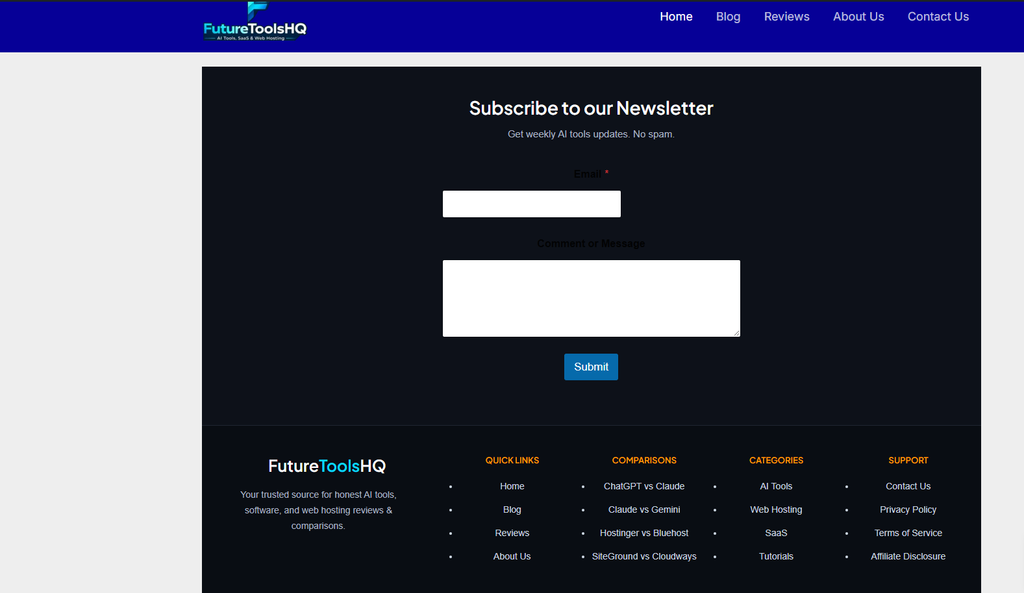
See what the result is of the code that Claude AI gave me after I told it.
So far you can create a header footer, no problem. Now whatever work I have given above or whatever I have done, I am showing you all practically hands-on, okay? If you work like this, you will definitely be able to do it. But now when the header-footer work is finished, then you have one work for the home page or website design. I will usually do the design in a simple way, because if I do a design for the home page, then you will have something like a website or a landing page, a whole website will become beautiful.
I will now give you a design for the home page in one click or in a beautiful way. And when you become a little more professional, then gradually you will be able to do much better. But for learning at first, you need to learn only this much. If you try to learn too much it becomes a lot of hassle, but learning slowly is better I think.
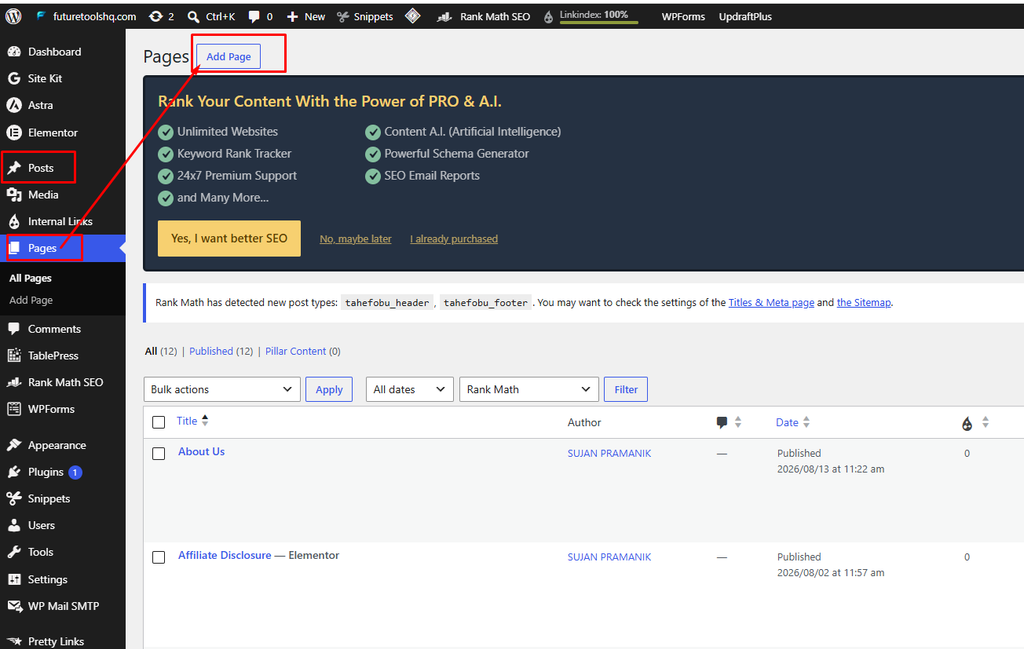
If you click on a page, it will show you a title, description, or ‘Edit with Elementor’ like this. Look below, as I have shown.

Now you have some important pages, the pages that you must have to create to build your website, like there is About Us, then there is Contact Us, okay, there is Privacy Policy, okay, your team, there is Terms of Service page. These three, four, five pages are compulsory, you must have to create these five pages, okay, you have to create five-six pages.
But where will you design? Blog page, Home page, Review page – you have to design these. But here remember one very important thing, the pages you will design, you will click on ‘With Elementor’. After clicking on Add Page, click on ‘Edit with Elementor’, click there and do the work.

After clicking on Edit with Elementor, you will get a page like this. There is a Plus sign with ‘Drag widget here’. Here you will click on the plus sign and take a container. After taking the container, you will drag and drop the HTML code widget.
After bringing it, you will tell ChatGPT or Claude to ‘create a beautiful coding for my home page or my review page, my page will be like this’. It will create the coding for you, you will paste the coding. Once you paste it, your website is done.
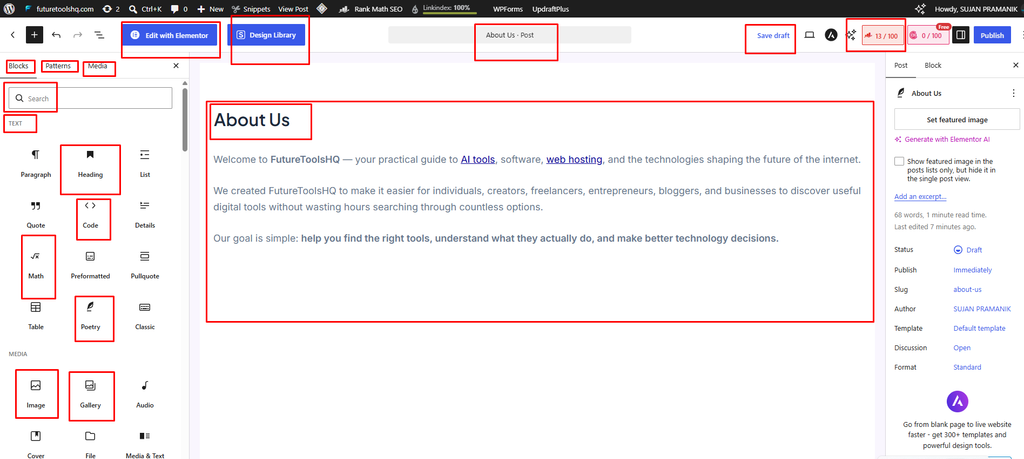
If you click on About Us page, if you click on Add Page, you will see there is some page content, there is a title below, you can create a page with those. I showed two in the same place because it’s the same thing.
If you click on Add Post in the Post section, you will come here, for Pages also you will come here. So, About Us is a title, I mean your page title is small that’s why it’s small, and a post title is big. So there you will give the post title, then you will slowly arrange beautifully with the things you need, then in the review when the page work is done or when the post work is done, you will review and see how it looks, then you will publish.
WordPress
Let me tell you something, listen. WordPress is such a sector or such a place where if you do one task, it will take two, four, five hours. If you go to properly design just the header, you won’t be able to finish it even in five, seven, ten hours, there is so much work in the header.
And if I talk about the footer section, if you want to design the footer nicely as you wish and then do optimization, it takes a lot of time. There is homepage design and then I mean, every single task needs a lot of time. It’s not possible to do it in one day or in one article. There is a plugin sector, there is appearance, okay I am showing you the WordPress sections, you will see these things.
There is an Astra theme, okay the theme that is there, the theme is huge, it takes a lot of time to learn. Then there is post, post sector, category post. And media is where all your image files and everything will be stored. Then there is page, there is a page sector. Then there are plugins, then there is appearance. Okay these are like menus in WordPress, there are several menu bars.
At first after you enter you will get seven, eight or ten menu bars, and there is work in each of these ten menu bars. You will learn one menu bar slowly, if you learn all at once you won’t remember. What I am trying to say is, learn this much and get a basic idea. What is my purpose of teaching this much? I learned this much and I will do everything with AI. Because AI is an assistant.
Whether you say Claude, say ChatGPT, whatever you say, it will work as your assistant. Here on my website I discuss AI tool reviews all the time, because when discussing AI tool reviews, my audience, my traffic, or my brothers, they all create websites and get stuck on websites. That’s why I gave it in a small, simple, general way so that they can learn a little and control their own website themselves.
We may not be able to do professional work, but we can control it. That’s why this is given. After watching this, you can make ChatGPT and Claude or any AI your assistant and work. If you get stuck anywhere, just take a screenshot and paste it to Claude or ChatGPT, it will give you a review or tell you to do it this way, and it will be fixed. I hope you understand what I am saying