

WordPress Plugins
Today I saw a piece of news, and after seeing it, I felt I should write an article about it, so I’m writing this article. Recently, hidden backdoors were found in more than thirty WordPress plugins. Many news channels reported on this, and it also appeared in cybersecurity news. I looked into the reason behind it — some time ago, an incident happened where someone installed more than 25 paid plugins, and after installing them, their website got hacked. After the hack, he lost everything. This is exactly why security — website security — is the most important thing. So today I’ll discuss a bit about how to choose a plugin, which plugin is good, and how to understand whether a plugin is good or not.
When you install a plugin on a WordPress website, some of your website’s information is immediately shared with that plugin. A plugin can perform many kinds of tasks using some of your data. Because of this, when I install a plugin on my WordPress website, it’s as if I’m immediately handing over my website’s security to that plugin’s developer. For this reason, if you can’t set up a plugin properly, can’t select the right one, or can’t choose a reliable plugin, it can become a problem for your entire WordPress site.
In this article, I’ll share how I choose WordPress plugins and how you should choose them too, and I’ll also share with you a list of my most-used plugins. And if you want to learn WordPress, read my WordPress Masterclass article — you’ll be able to learn easily.
WordPress Plugins Choose
Choosing a WordPress plugin is a very important matter. Because if you want to build a website with WordPress, it’s possible to build one entirely using WordPress plugins, okay. That’s how important plugins are — as soon as you install WordPress, you have to start installing plugins, because nothing works there without plugins; you will need plugins.
When you select a plugin, you should be a little careful and select it with some sense of importance, I think. You find a plugin with good features, you see ads that look very appealing — “if you install this, this and that will happen” — and you get some nice-looking features. But after installing it, you see that your website itself has gotten hacked. So the very plugin you installed on your website is the reason your website is now going under hacking — shouldn’t you do this work keeping that in mind?
That’s why I’m giving you a few steps that you must keep in mind when selecting a plugin. Normally, the most popular plugins don’t have any problem, but sometimes ads pop up easily — suddenly they show you ads, and after that they claim the plugin comes with such great features. You must stay away from these plugins and be aware of them. I’m talking about those plugins that push too many ads — it’s often seen that those plugins have problems. I’ll talk about which of these plugins are good, which are bad, and how you can choose or check them.
Plugin Research Using Reddit
I have shown in a picture below how you can choose a plugin on Reddit. Whichever plugin you need, in place of contact form you will write the name of that plugin and search. After searching, you will go and check the comments of that plugin and then what details are discussed.
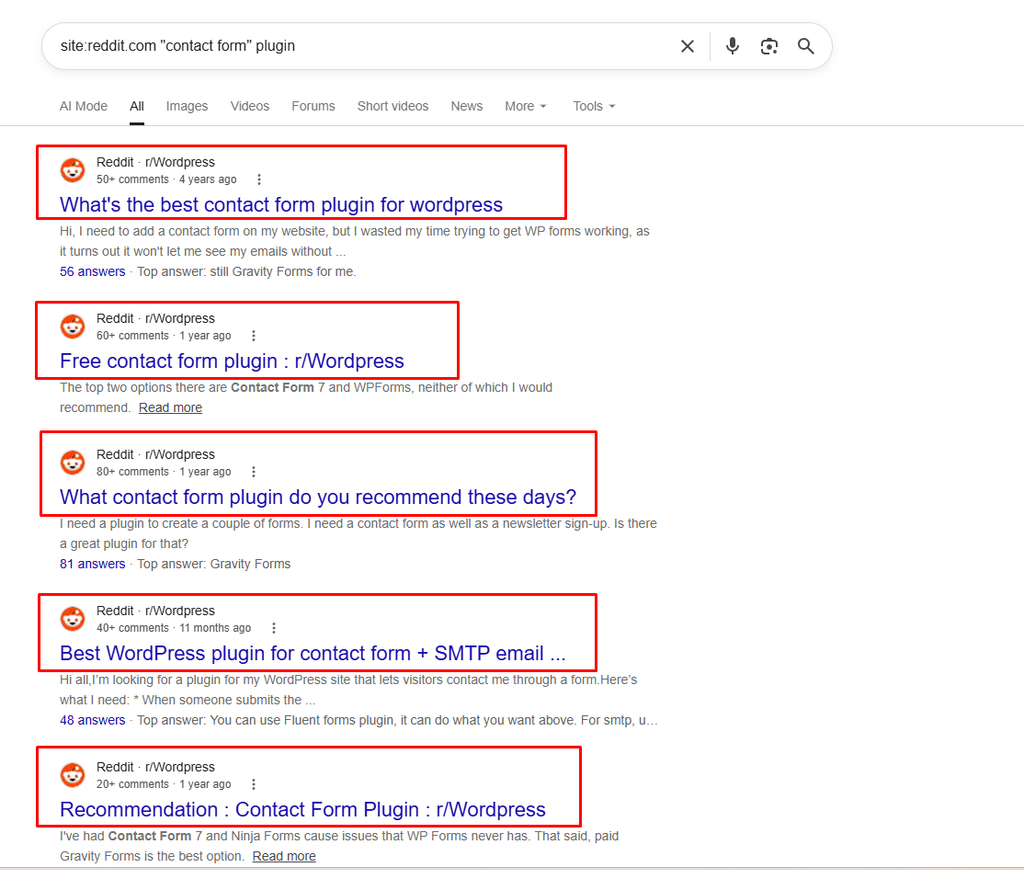
I am showing an example of how I choose plugins.

Google has given some results, from here I will open whichever one I like.
If I want to search for a plugin, I go directly to Google.On Google, I type:
site:reddit.com “contact form” plugin
After typing this, you press Enter.
What happens here? When you write site: with Reddit, it means Google will only show you information from Reddit. What information? Information related to WordPress SEO plugins.As a result, you’ll be able to see what people on Reddit are currently saying about SEO plugins. For example:
What’s the best SEO plugin for WordPress? Free SEO plugin.
You’ll find a lot of information here. From this, you’ll be able to understand which plugin might be good for you, based on your preference.
Suppose, instead of a SEO , you want to search for some other plugin. For example, let’s say you always use SEO . But now you want to find an alternative to SEO . You’ll type on Google:
SEO alternative
Then, after pressing Enter, you’ll get information about what people on Reddit are saying regarding SEO alternatives and which one is better. For example:
What’s the better solution than SEO?
This is how you’ll see what people are saying about SEO alternatives. You’ll also find discussions here about which one is good for non-designers.
So whenever I need to dig a little into some plugin, I usually search a bit on Reddit. Because the advantage of Reddit is that real users share their experiences with various plugins here.
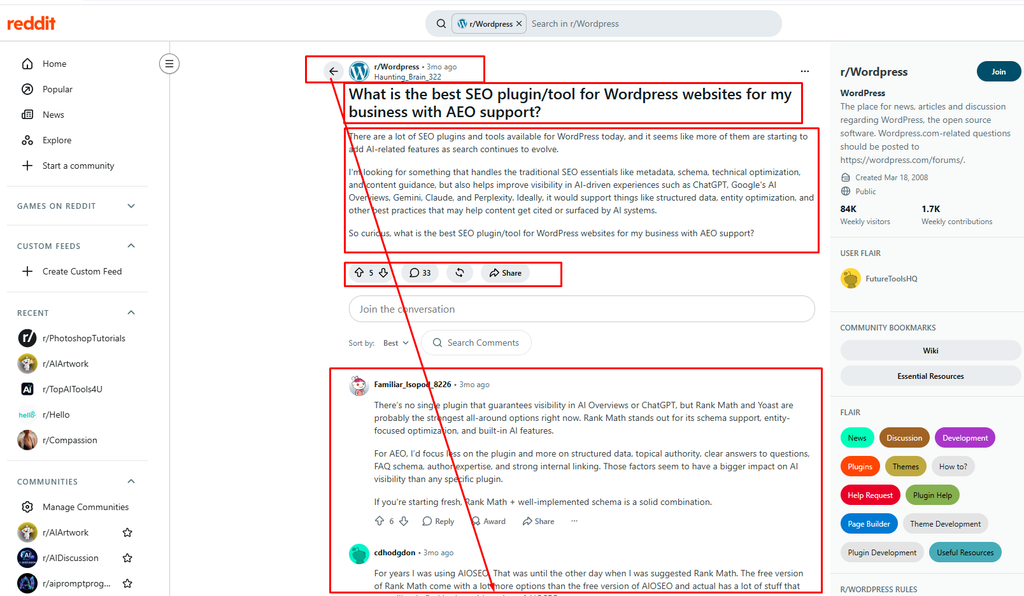
When you go on Reddit, let’s say there’s a post about SEO alternatives with 33 comments. People have talked here about various plugins — which one is good, how each one works. You’ll get a good idea about this.
Whenever I need to look for a plugin and need to know about it, I dig around a little on Reddit. That’s how I search on Google.
Finding Plugins Used by Looking at a Website
When you look for a flag from any website, click the right mouse button and click on View Page Source.
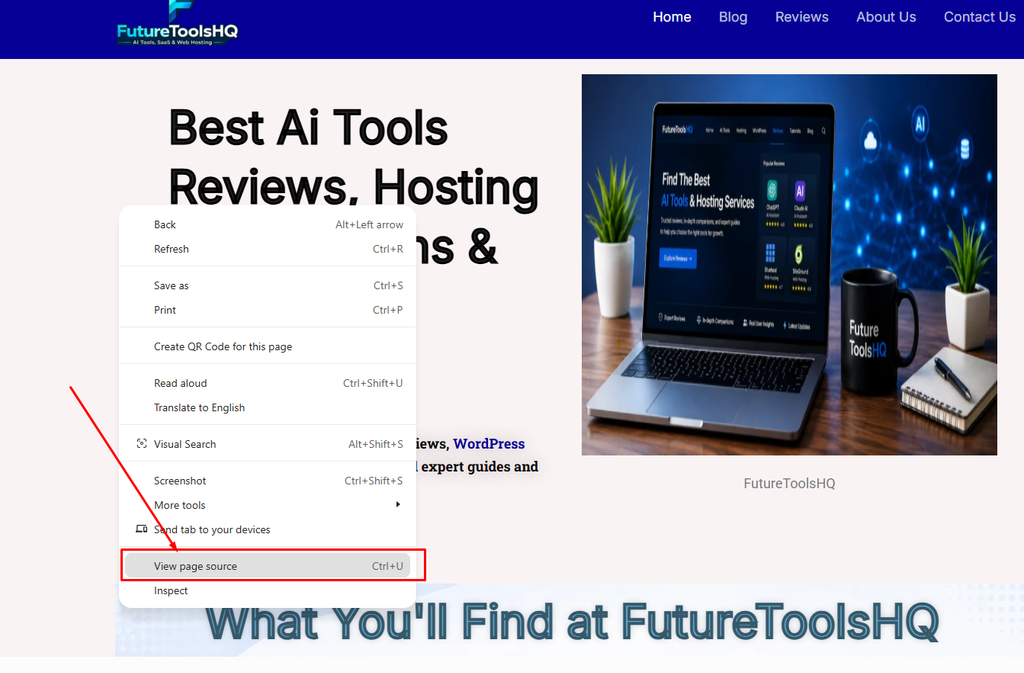
When the View Page Source opens, then you press Control + F, then your search bar will open, there you will search for,
WP-Content/Plugins,
if you search you will be able to see the Plugins.

From this you will get an idea that if you like any website, research and check the website of the category you want to create, what plugins that website is using. Then you can easily see through this method that the website I want to build, related to mine or alternative to mine, he has built that website and he has used these plugins to build that website, so these plugins are secure because his website has been developed and has become very big. So if I want to build a website accordingly, then I can install these plugins. From this idea, the security of your plugins will be much better.
Using a Plugin Detector
If you search on Google by writing Plugin Detector, you will find some websites, from there you can easily check plugins too.
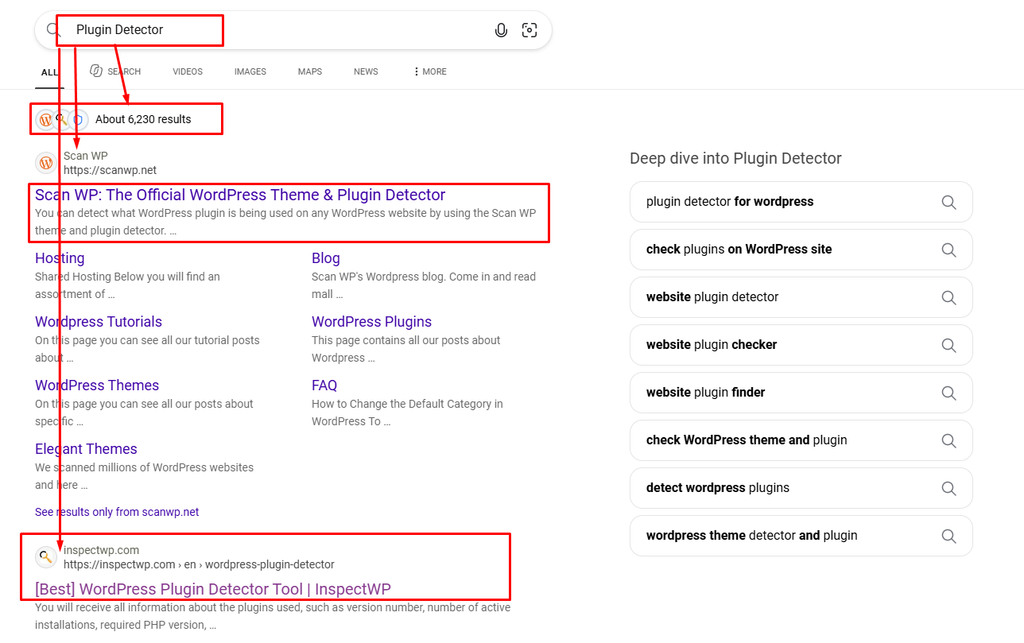
After clicking on Plugin Detector, among the websites that are appearing, I clicked on one website.
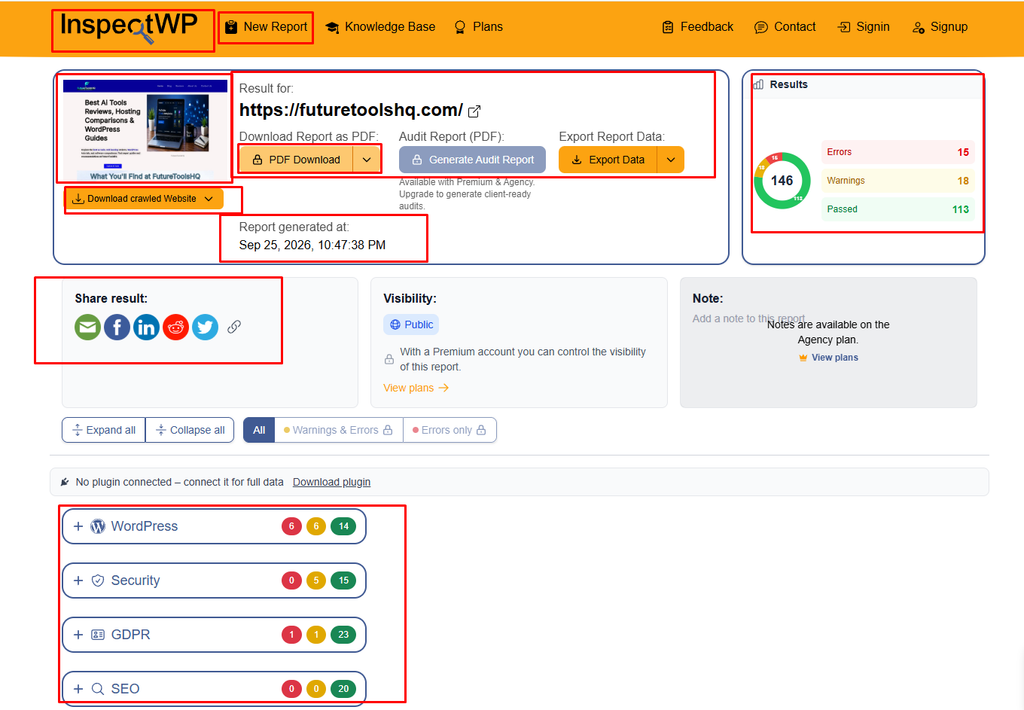
By visiting these websites you can get an idea about a plugin. There is security, WordPress and many other things here. From here you can get a nice idea and install the plugin according to secure security. Okay. I just showed you this easily, it’s an easy method.
WordPress Theme Detector
WordPress theme detector.
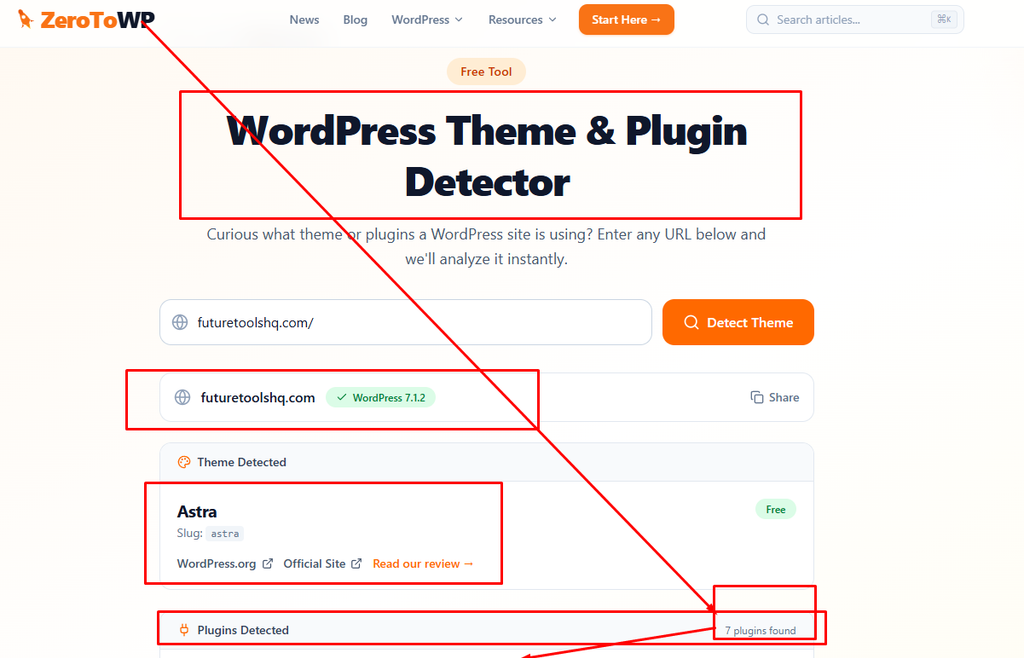
I am searching my website here, see here it has found out the plugins.
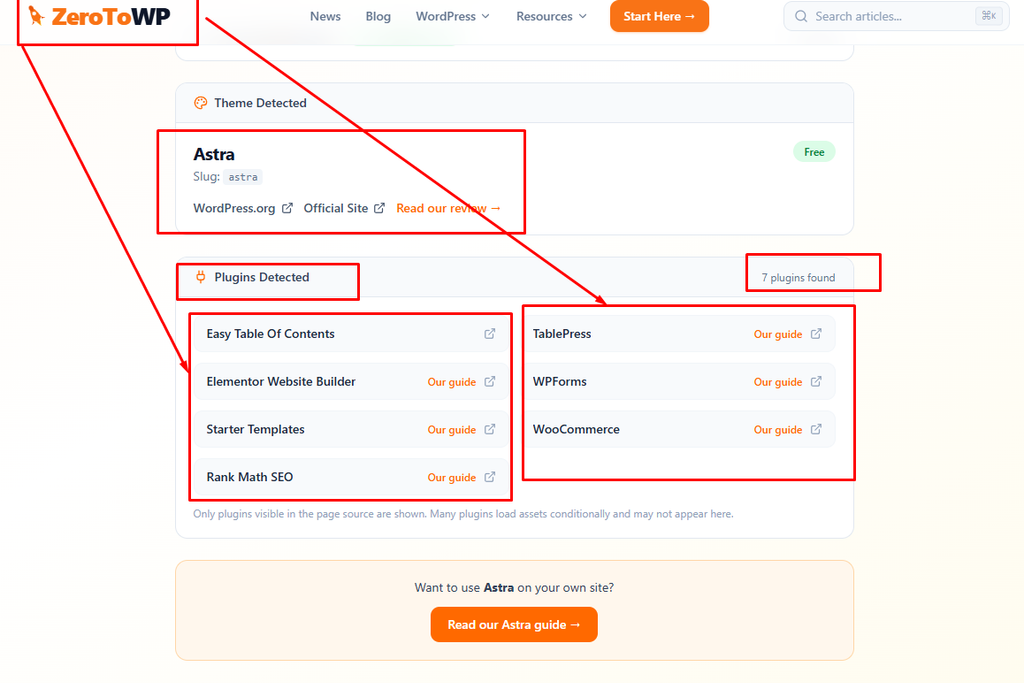
See what plugins I have installed on my website, I searched by giving my website link on a website, everything has come up. You can also easily see the plugins from your related or your competitor website.
Selecting a Plugin from Within WordPres
Now I am telling you a little about how you will select plugins from your WordPress plugins, you will click on plugins in WordPress and click on Add New Plugin.
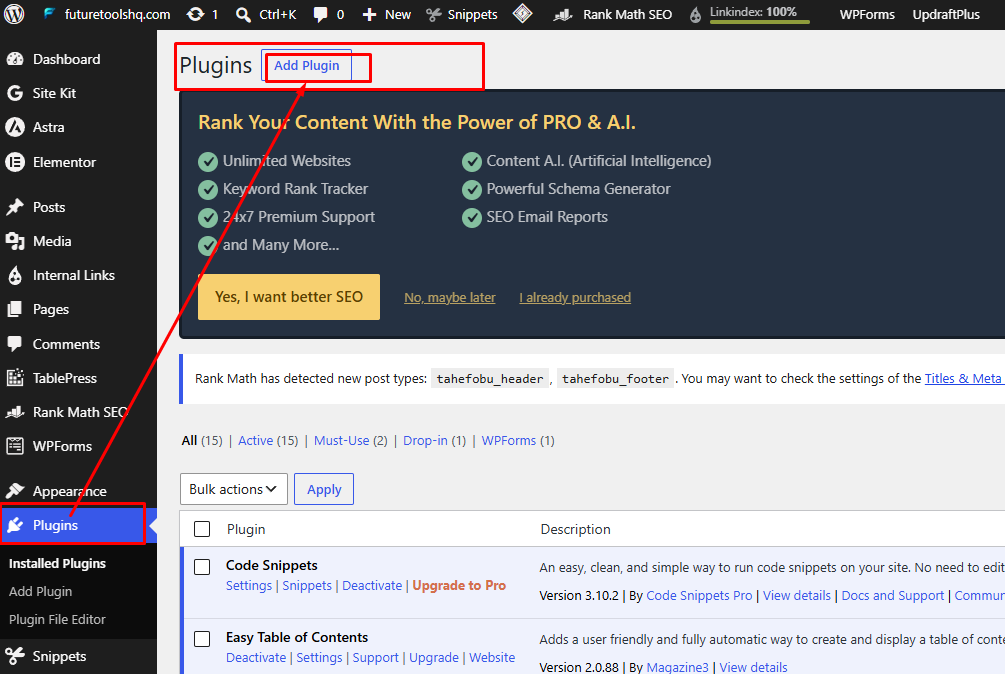
Suppose you are looking for an SEO related plugin, then search by typing SEO in this box.

When you search for a plugin, you will see the plugin name, and then there is the rating. Normally if that plugin has a lot of installations, meaning at least more than fifty thousand, then you will understand that this plugin is good and can be used.
Red Flags to Watch Out for When Selecting a Plugin
Red Flags to Watch Out for When Selecting a Plugin . There are a few red flags that, the moment I spot them, I stop using that plugin right away.
First red flag: If I see a plugin bombarding me with popups or ads immediately after installation — telling me to upgrade to the Pro version right now — that’s a warning sign. If a plugin throws too many popups at you like this, I simply don’t install it.
Second red flag: If I notice that a plugin gives me a lot more than what I actually asked for — say, a plugin packed with 10 or 15 extra features — I try to avoid those plugins.
I’m installing a specific plugin for a specific task. As long as that plugin does exactly that one job, I’m happy. I don’t need it handing me ten other things I never asked for.
Here’s why this matters: whenever you install a WordPress plugin, for every single feature it adds, it writes CSS, writes JavaScript code, and runs multiple queries on your database. Now, if you actually use those features, then it’s perfectly fine for it to write that CSS, write that JavaScript, and run those database queries.
But the problem arises when you install a plugin meant to do one job, and it ends up behaving like ten different plugins bundled together. For example, imagine you installed a Contact Form plugin — but along with it, it also gives you a carousel, an accordion, and other extras. You don’t need any of that, right? But it gives it to you anyway. And if you end up using those extra features, it will slow your website down at the end of the day. So I always avoid these kinds of bloated plugins.
Third red flag: If a plugin’s documentation isn’t properly written — either on their own website or on the WordPress plugin directory — and I see that it hasn’t received any support or updates for months on end, I don’t use that type of plugin.
Fourth red flag — and this is one you must absolutely keep in mind: many developers in Bangladesh do this — using nulled or cracked plugins. Always try to avoid these. By using these plugins, you’re putting your own website’s security at risk. Yes, always avoid this.
The reason is that the people who null or crack these plugins often plant backdoors inside them. They inject data into your database. This can cause all sorts of trouble. So make sure you always avoid these plugins.
Finally, whenever I install a plugin, I try to take a look at its security history. I check the author carefully to see what changes they’ve made. I also pay attention to whether the author has recently changed — because a change in authorship is often a reason to be cautious.
Keep an eye on these things.
Before Purchasing a Premium Plugin
If you ever want to purchase a premium plugin, first check out its free version. See how it works, what facilities it offers, and figure out whether you actually need the paid version — try this out first with the free version. If you see that yes, everything checks out, then go ahead and move forward with the purchase.
Don’t Install New Plugins Directly on a Live Website
Next, here’s what I want to say: whenever you’re about to install a plugin, there will be many times when you’re installing a less popular plugin — one you don’t know much about — or you’re installing something completely new.
What I normally do is: I never install a plugin directly on a live website. I first set up a local environment on my computer, and install the plugin there. I check how the plugin works, what its advantages and disadvantages are. Once I’ve reviewed all of this and feel confident that everything is good, only then do I upload it to the live website. I never install a new plugin directly on a live website.
If you’re freelancing, or working on a client’s website, and you install a plugin there, you must give the client documentation after installing it — explaining that you’ve installed a new plugin, what features this plugin provides, what benefits it offers, and how to maintain it. Share all of this with the client.
If the plugin is a paid plugin, you should also share with the client whether you purchased it on a monthly package, a yearly package, or a lifetime package — and what its renewal process is. Otherwise, the client might misunderstand you.
So keep these things in mind. I’ve seen many people do this: they take payment from a client for a full year, but only buy the plugin for one month and set it up on the client’s website. Then, after a month, when the client sees that the plugin has stopped working, it becomes a real problem.
Don’t do this kind of thing. Try to stay transparent with your client. If you don’t do this, you’ll end up suffering the consequences.
The Plugins I Use Regularly
Now let me talk to you about my go-to plugins.
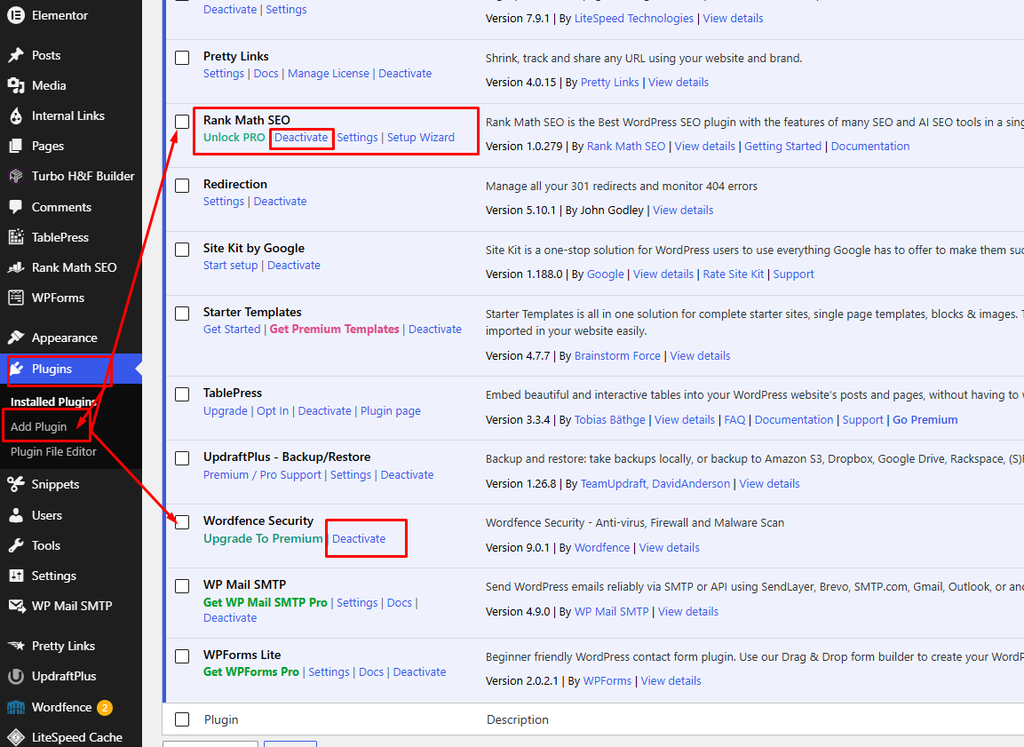
For security, I normally use the Wordfence plugin. And if you have a bit of budget, you can use Patchstack.
For backup and migration, I use UpdraftPlus. You can also use the All-in-One WP Migration plugin if you prefer.
For SEO, I use both Rank Math and Yoast SEO. In my experience, Rank Math’s free version lets you do a lot more. But Yoast SEO gets even better if you go for the paid version. So you can use either one — but never use two SEO plugins at the same time.
For caching, if you’re using Hostinger, you can use LiteSpeed Cache. You can also use LiteSpeed Cache on other hosting providers as well. And if you want a paid caching plugin, go with WP Rocket.
For forms, I normally use Contact Form 7. If I want a bit more control over the UI, I use the Bit Form plugin. Besides these, I also use WPForms and Fluent Forms as needed.
For custom fields, I use ACF (Advanced Custom Fields).
For email or CRM, I use FluentSMTP, FluentCRM, or in the case of WPForms, WP CRM.
For image optimization, I use ShortPixel, and Elementor also has its own default image optimization feature you can use.
For development tools, you can use WPCode and WP Control.
One thing worth noting: every single plugin I’ve mentioned here has been providing long-term support for a long time. That’s exactly why I use these plugin
Be Careful with AI-Generated Plugins Too
Recently, there are many people among us who use null (cracked) plugins. Avoid these.
Recently, there are also many people who build plugins using Claude or ChatGPT and upload that plugin directly into a live/development environment. You must never do this kind of thing. Even if you build a plugin using an AI tool, thoroughly check the codebase. Make sure everything is correct — check whether the security audits are in order. Because if there’s a security issue in your plugin, that issue will become a security problem for your entire website. So make sure you keep this in mind.
Final Words
I hope this article was helpful for you. Don’t forget to share your thoughts in the comments. You can also let me know in the comments which plugins you use for which tasks — that will be helpful for many others as well, and your comments will be very useful for the community.