

ChatGPT-6 Astra (Step-by-Step Guide)
If you’ve spent any time online recently, you’ve probably seen people showing off jaw-dropping, three-dimensional websites built entirely with ChatGPT’s Astra mode (also known as GPT-6). It looks effortless in the demos — until you actually sit down and try it yourself. Suddenly you’re staring at prompts, skills, UI frameworks, and deployment settings that feel like a foreign language.
The good news: it’s genuinely easier than it looks once you know the right order of steps. Below is a complete walkthrough — the same process used to build a real, live website from scratch — covering everything from setting up your tools to launching on your own custom domain.
Here’s what this guide covers:
- Setting up the tools you’ll need
- Defining your brand
- Building the website with GPT-6 Astra
- Launching your site on a custom domain.
What You Need
Before opening a single prompt, you need three tools in place:
An OpenAI plan that gives you access to GPT-6 / Astra mode (at minimum, the Plus plan — Free tier won’t cut it)
A Higgsfield plan, an AI video generation tool used to create the scrolling hero video for your homepage (Plus plan or higher)
Node.js, a free, lightweight install that lets you connect your finished website to a custom domain name.
Setting up ChatGPT: Open your profile menu → Settings → Usage and Billing to check your current plan. If you’re on Free, upgrade to at least Plus.

Setting up Higgsfield: Create an account or log in, then go to your profile → Manage Account → Subscription → Upgrade Plan. Choose at least the Plus tier (monthly is fine if you’re just testing it out).
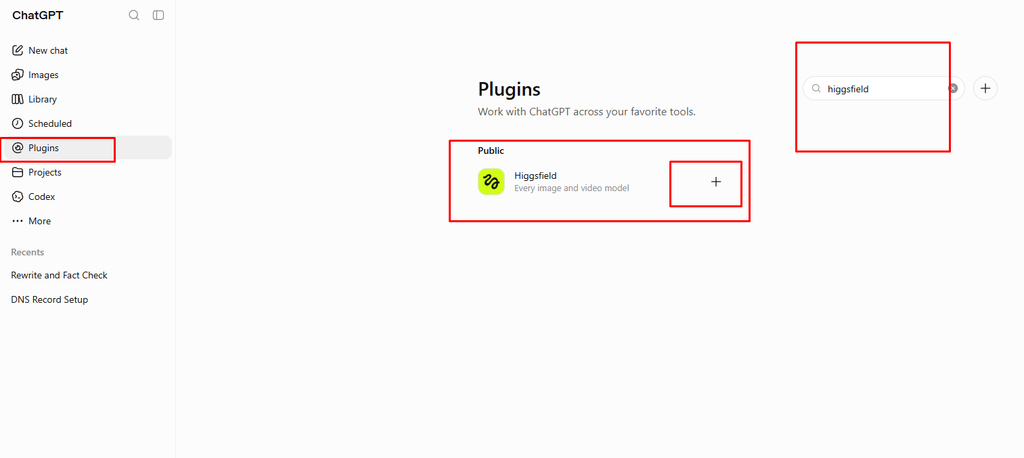
Once you have both accounts, connect Higgsfield to ChatGPT as a plugin: in ChatGPT, go to Plugins → Browse Directory, search “Higgsfield,” and install it. You’ll be redirected to authorize the connection — just click Allow.
Installing Node.js: Head to nodejs.org, click “Get Node.js,” and download the installer for your operating system. It’s a simple, sub-30-second install.

Define Your Brand
Before you can ask Astra to build anything, you need three brand basics: a name, a logo, and a color palette. If you already have these, skip ahead — but if not, ChatGPT can generate all of it for you.
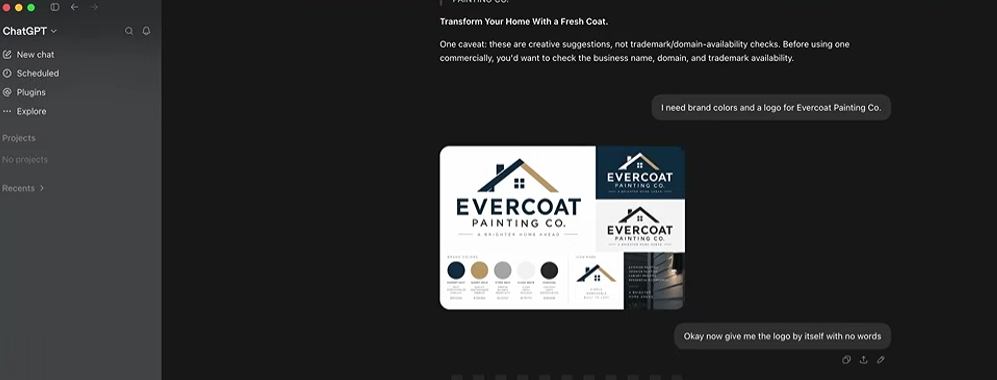
Start a new chat and ask something like: “What are some good names for a [type of business]?” Once you land on a name you like, follow up with: “I need brand colors and a logo for [Business Name].” ChatGPT will generate a full brand image — colors, style, and a logo concept. You can then ask for the logo by itself as a transparent PNG so it’s easy to place anywhere on the site.
From there, ask ChatGPT what sections your website should include (hero, services, testimonials, before/after galleries, etc.), and then what images each section needs. Once you have that list, ask it to generate the images one by one, with clear file names so you know exactly where each one goes. Save everything into a single folder — you’ll upload it as source material shortly.
Find a design reference: Browse a site like Dribbble.com and search for a style close to what you’re building (e.g., “business web design”). When you find a layout you like, take a screenshot and save it — you’ll hand this to Astra as visual inspiration.
Create a dedicated project: In ChatGPT, go to Projects → New Project, name it something like “Website Build,” and under Sources, upload every brand image you generated earlier. This keeps all your reference material in one place for Astra to pull from.
Build the Website with GPT-6 Astra
With your project set up, click Work at the top of the chat and switch the GPT mode to Astra. Astra offers Light, Medium, and High settings — Medium is a solid default for most projects, balancing detail with speed.
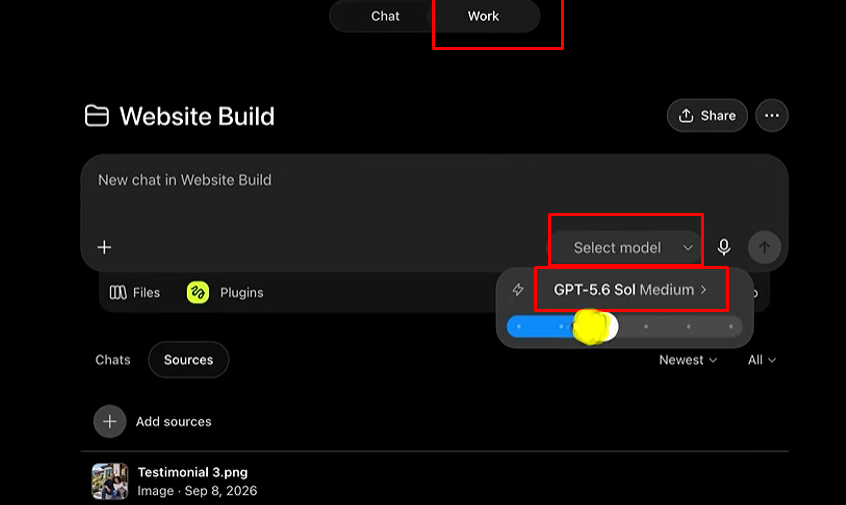
The prompt is everything. A strong first prompt should include:
The business name and location
A reference to your inspiration image, with a note to adapt the style to your industry
Instructions to use your own branding, colors, and logo
Any special features (e.g., a scrolling hero video)
A request for specific sections
Most importantly: an instruction to ask clarifying questions before starting
That last point matters most — asking Astra to pause and ask questions first (rather than guessing) dramatically improves the final result. Once you send the prompt, Astra will typically respond with a list of numbered questions about your sections, video, calls-to-action, services, and page structure. Answer by number, or say “you decide” for anything you’re flexible on.
Generating the hero video: If you don’t have a hero video ready, tell Astra to build one with Higgsfield first. The first attempt may not land — that’s normal. If the result feels off, open a separate ChatGPT chat and brainstorm a shot-by-shot concept (for example, a POV sequence walking through your product or service). Ask ChatGPT to turn that concept into a detailed Higgsfield prompt, complete with a starting frame and ending frame image. Feed those two reference images plus the shot breakdown back into your project, and regenerate the video — the improvement is usually significant.
Once you’re happy with the video, tell Astra to build the full site around it. Give it a few minutes, and it will generate a complete website — hero section, service breakdowns, image galleries, team sections, and a contact form — all using your uploaded brand assets.
Fixing issues: If something isn’t working quite right — say, the hero video isn’t autoplaying on scroll — go back to the chat and describe the exact problem, adding “do not change anything else about the website.” Astra will inspect and patch just that section without touching the rest of your layout.
Launch Your Website
At this stage, your site is live on a temporary ChatGPT subdomain — not ideal for sharing with real customers. To launch it properly, you need two things: hosting and a custom domain.
Hosting is simply server space that keeps your website online 24/7, regardless of whether your own computer is on. A reliable, affordable hosting provider (Hostinger is a solid, budget-friendly option) will typically include a free domain name and free domain privacy for the first year, especially on 12-month or longer plans.
Steps to launch:
Sign up for hosting and choose a plan (12 months is a reasonable minimum to get the discounted rate and included domain).
During setup, choose “Migrate an existing site” rather than creating a new one from scratch.
Select “Upload backup files” — you won’t actually need to upload anything at this stage.
Register your free domain name under your new hosting plan.
Connecting ChatGPT to your host: Back in ChatGPT, go to Plugins, search for your hosting provider’s connector (e.g., “Hostinger”), and install both the connector and the main plugin. You’ll need to authorize the connection with your hosting account.
Important: After installing new plugins/connectors, fully quit and restart the ChatGPT desktop app — browser-based ChatGPT won’t support the deployment step.
Once restarted, open your project, start a new chat, switch back to Astra (Medium), and ask it to package the complete website into a deployment-ready zip file, including all assets, images, videos, and configuration needed for the site to work exactly as shown.
Download that zip file, then in a new chat prompt Astra to deploy the website to your hosting account using your new domain name, attaching the zip file. Approve any permission prompts that appear. Within a few minutes, your site will be live on your own domain — fully functional buttons, forms, and hero animation included.
Making future updates: Anytime you want to change something, go back to the same project chat, describe the change, ask Astra to re-export a new zip file, then redeploy it the same way through the desktop app.
That’s the full process — from brand concept to a live, custom-domain website — using ChatGPT-6 Astra, Higgsfield for video, and Hostinger for hosting.
Want this saved as a Markdown or Word file for uploading straight to your site?