
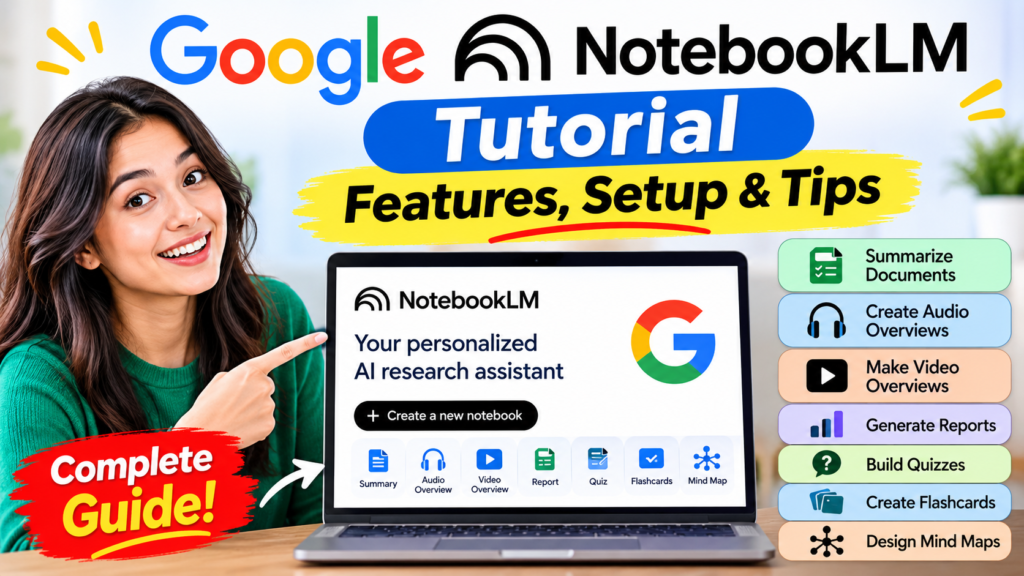
Google NotebookLM Tutorial
Ever spent hours reading through PDFs, articles, and notes just to find one answer? What if an AI could read all of it for you, summarize it in seconds, and even turn it into a podcast you can listen to on your commute?
That’s exactly what Google NotebookLM does. In this beginner’s guide, you’ll learn what NotebookLM is, how to set it up, and how to use its best features, including audio overviews, video overviews, mind maps, quizzes, and flashcards. Whether you’re a student, teacher, researcher, or content creator, you’ll be up and running in just a few minutes.
What Is Google NotebookLM?
Google NotebookLM is an AI-powered note-taking and research assistant. It analyzes the information you give it, such as documents, websites, and videos, and helps you understand and use that information in several different ways.
Put simply, NotebookLM is an AI assistant built around your own sources. Based on what you upload, it can write summaries, answer your questions, and help you create different types of content.
You can add sources like PDFs, Google Docs, website links, and YouTube videos. NotebookLM then analyzes them and organizes the information to fit your needs.
It can even turn your material into podcast-style audio discussions, video overviews, reports, quizzes, flashcards, and mind maps.
NotebookLM Pros and Cons
✓ Pros
- Answers come from your own sources. NotebookLM focuses on the documents you add, and its answers include citations that point back to them, making it easier to check where a claim came from.
- Many ways to learn from the same material. One set of sources can become a summary, audio overview, video overview, report, quiz, flashcards, or mind map.
- Free to start. You can try it with a regular Google account without paying.
- Works with common source types. PDFs, Google Docs, website links, YouTube videos, and pasted text are supported.
- Beginner-friendly. The interface is simple, and you don’t need technical skills to get started.
- Saves time. Summarizing long documents or preparing study material can take minutes instead of hours.
- Multilingual output. You can change the output language in Settings.
✗ Cons
- It can still make mistakes. Like any AI tool, it may misread a source or leave out important details, so verify key information.
- Quality depends on your sources. If your documents are incomplete, outdated, or inaccurate, the output may be too.
- Usage limits on the free plan. Free accounts have limits on things like the number of sources and daily generations. Paid plans offer higher limits.
- Not a general knowledge chatbot. It is designed to work with the sources you provide, so it may not be the best choice for open-ended questions about topics you haven’t uploaded material about.
- Google account required. You need to sign in to use it.
- Privacy considerations. Think carefully before uploading sensitive or confidential documents, and review Google’s privacy policy first.
- Audio and video overviews aren’t perfect. Generated overviews can oversimplify a topic or sound repetitive, so they work best as study aids—not as replacements for the original material.
How to Use Google NotebookLM
Let’s walk through the process from the very beginning.
Step 1: Go to the NotebookLM Website
Open your browser on your computer or laptop and search for “NotebookLM” on Google. Click the official NotebookLM result to open the site.
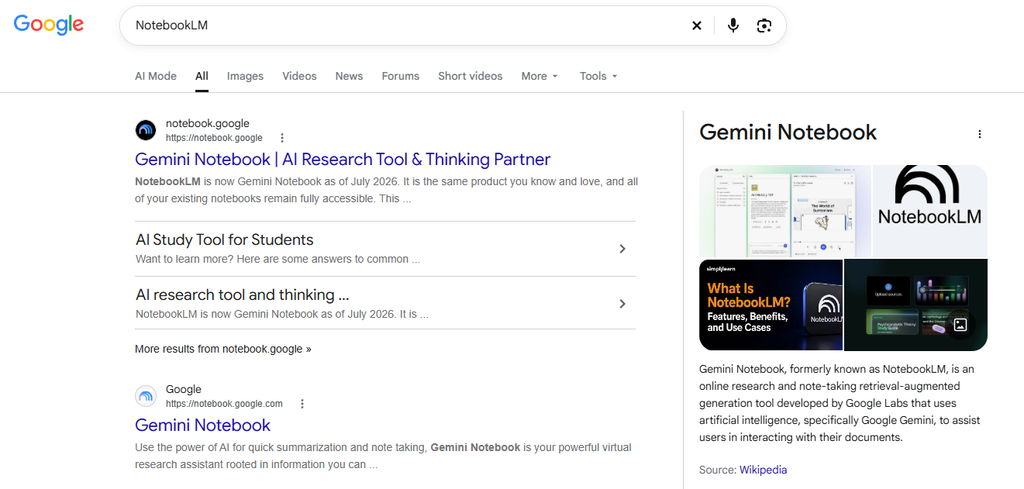
The first time you visit, you’ll need to sign in with your Google account. If you’re already signed in to Gmail in your browser, NotebookLM can often use that account automatically.
Step 2: Create a New Notebook
Once you’re in, you’ll see the Create new notebook option. Click it to start a fresh notebook.

So what kinds of information can you add to a notebook? NotebookLM supports a variety of sources, including:
- Documents from Google Drive
- Google Docs
- PDF files
- Website links
- YouTube video links
- Copied text
- Other supported source types
In other words, whatever information you already have, you can add it here and start your research.
Step 3: Add Your Sources
Let’s use an example to see how this works.
Say you want to write an essay on how to reduce screen addiction in kids. You could first draft the piece with ChatGPT or another tool, then copy the text and add it to NotebookLM.
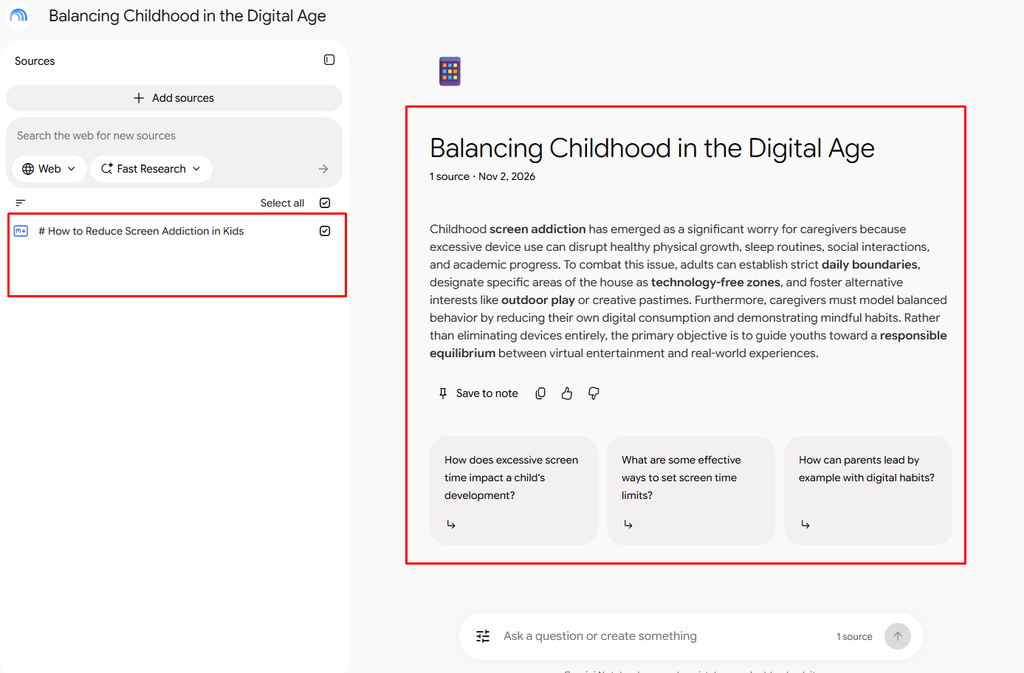
Choose an option like Add sources or Copied text, paste in your text, and click Insert to add it.
NotebookLM will analyze what you’ve added and generate a short overview, so you can quickly see what topics your document covers.
Standout NotebookLM Features
Now let’s look at some of NotebookLM’s most useful features, which let you turn your sources into many different formats.
1. Create a Video Overview
If you’d like your material presented as a video, try the Video Overview feature.
NotebookLM analyzes your sources and builds a video summary from them. For example, if you’ve added an essay about kids and screen addiction, just click Video Overview and let it generate. When it’s ready, you can play it right inside the notebook.
It’s a great way to make a plain piece of writing more engaging and easier to follow.

2. Create an Audio Overview
Audio Overview is another standout feature. It turns your sources into a podcast-style conversation.
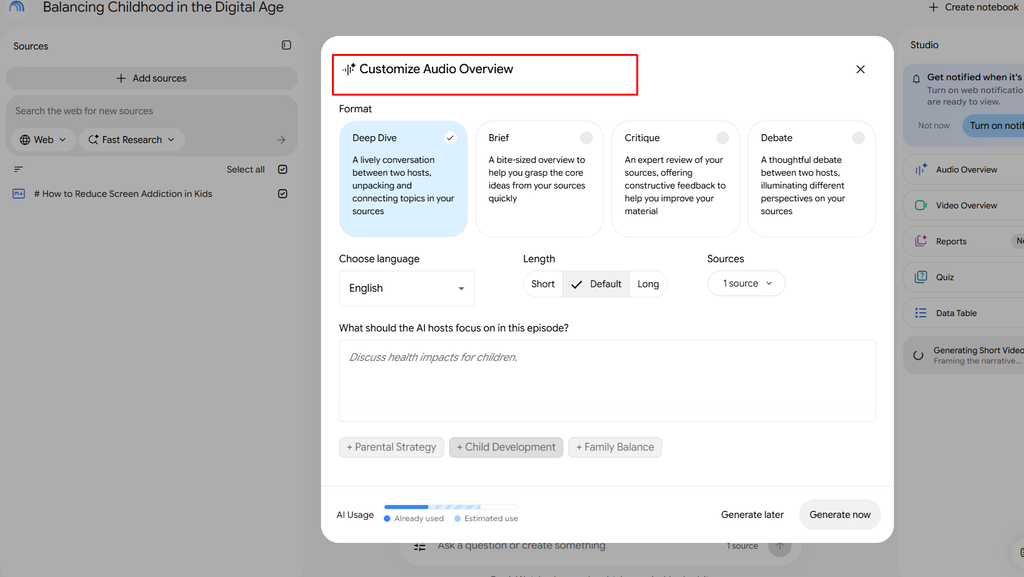
Two AI hosts discuss your material in a natural, back-and-forth format, so you can learn by listening instead of just reading.
This is especially handy for students, teachers, and anyone who likes to absorb new topics on the go.
3. Create a Mind Map
If you want to see how the key ideas in a topic connect, use a Mind Map.

A mind map organizes your sources into branches. For an article on kids and screen addiction, the branches might include:
- Causes of screen addiction
- Harmful effects
- Ways to reduce screen time
- What parents can do
Laying the topic out this way makes it easy to see how each idea relates to the others.
4. Create a Report
Need a written report based on your sources? Use the Report feature.
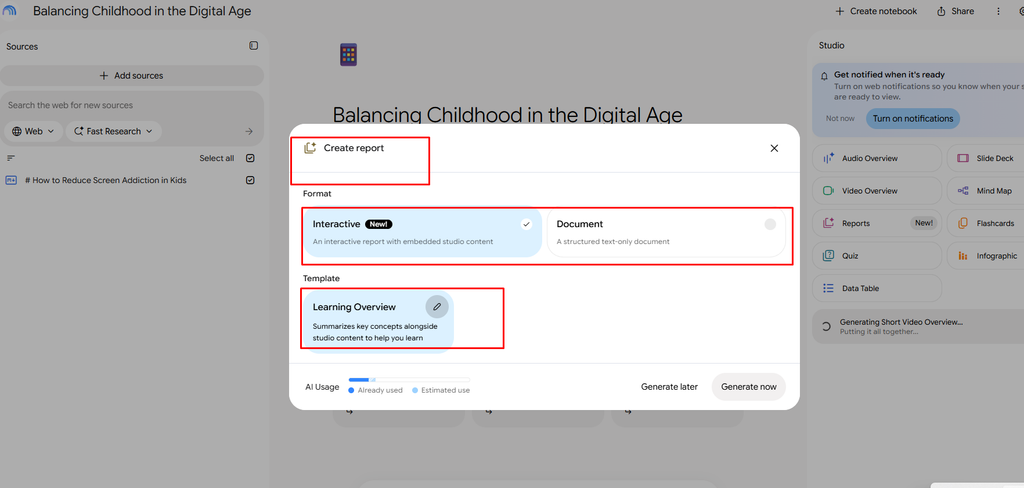
Depending on what you need, you may see several report formats to choose from, such as a general report on a topic, a detailed explanation of a specific subject, or a clean, organized summary of your material.
5. Create a Quiz
Students and self-learners will find the Quiz feature especially useful.
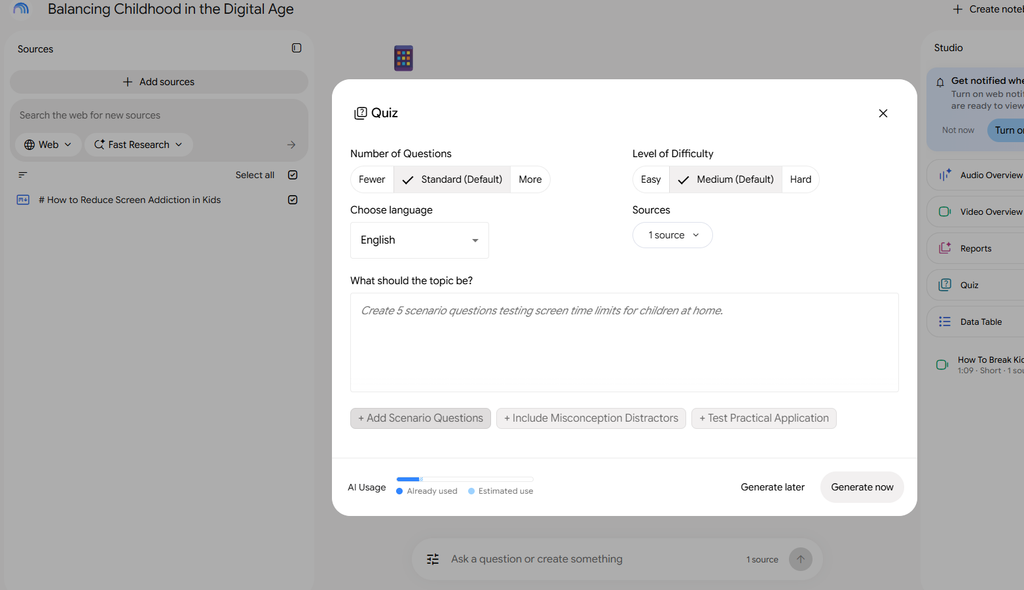
NotebookLM can generate questions from your sources, often with multiple-choice answers. Pick the correct answer to test what you know.
It’s a quick way to check your understanding after reading a chapter, or to create practice questions for students.
6. Create Flashcards
To memorize key points quickly, try Flashcards.

NotebookLM turns your sources into question-and-answer cards. You’ll see the question first, then click to reveal the answer.
Reviewing the cards over and over is a simple, effective way to make important information stick.
Doing Deeper Research With Multiple Sources
So far, we’ve only used a single source. But you can add multiple sources to the same notebook.
If you’re researching a topic, for example, you can add several PDFs, websites, YouTube videos, and other supported sources together.NotebookLM will analyze everything in the notebook and use it to generate outputs, giving you a much more complete picture of the topic.
Asking NotebookLM Questions
Once your sources are added, you can ask NotebookLM questions about them. If your sources cover kids and screen addiction, you might ask:
- What are the main causes of screen addiction in children?
- How does too much screen time affect kids?
- How can screen addiction in children be reduced?
- How can parents help their children?
NotebookLM answers based on the sources you’ve added, which makes researching a topic, analyzing information, and finding answers much faster.
Who Can Use Google NotebookLM?
NotebookLM can help many different kinds of people:
Students: Create study notes, summarize chapters, and practice with quizzes and flashcards.
Teachers: Organize lesson material, build practice questions, and explain topics in simpler ways.
Researchers: Analyze documents and sources, find key information, and keep research organized.
Content creators: Pull information from multiple sources to plan videos, audio, and other content.
If you work with information in any form, NotebookLM can help you stay organized and work more efficiently.
Final Thoughts
Google NotebookLM is a powerful AI research and note-taking tool. It can turn your sources into summaries, answers, video overviews, audio discussions, reports, quizzes, flashcards, and mind maps, and the best part is that you choose the sources it works from.
One important reminder: always double-check AI-generated information. Before relying on it for important decisions, research, or schoolwork, verify it against the original sources.
Have you tried NotebookLM yet? Share your experience in the comments below. And if you’d like a deeper dive into specific NotebookLM features, let us know, and we’ll cover them in future guides.
Thanks for reading, and see you in the next one!
Frequently Asked Questions
What is Google NotebookLM used for?
NotebookLM is used to research, study, and organize information. You add your own sources, such as PDFs, Google Docs, websites, and YouTube videos, and it can summarize them, answer questions about them, and turn them into audio overviews, reports, quizzes, flashcards, and mind maps.
Is Google NotebookLM free?
NotebookLM has a free version that you can start using with a Google account. Google also offers paid plans with higher usage limits and extra features, so check the official NotebookLM site for current plan details.
What sources can I add to NotebookLM?
You can add PDFs, Google Docs, website links, YouTube video links, and pasted text. Supported source types may expand over time, so it’s worth checking inside the app for the latest list.
How is NotebookLM different from ChatGPT?
NotebookLM answers questions based on the sources you upload, so its responses are grounded in your own material and include citations that point back to those sources. ChatGPT is a general-purpose chatbot that draws on a much broader range of knowledge. Many people use both: one to draft and brainstorm, the other to study and verify.
Can NotebookLM work in languages other than English?
Yes. You can change the output language in Settings so NotebookLM generates responses and overviews in your preferred language.
Is the information NotebookLM gives me always accurate?
Not always. Like any AI tool, NotebookLM can make mistakes or misread a source. Always check important details against the original material, especially for schoolwork, research, or business decisions.
Who should use NotebookLM?
Students, teachers, researchers, writers, and content creators can all benefit. If your work involves reading, organizing, or summarizing a lot of information, it’s a good fit.