

Google Gemini Review
Google Gemini has grown into much more than a simple AI chatbot. What started as a place to ask questions and get quick answers has gradually become a broader workspace for writing, research, image generation, video creation, and everyday productivity.
But if you’ve only been using the main chat box, you might be missing quite a few useful features. Gemini has a collection of tools tucked away in its sidebar, along with a dedicated Images workspace and several subscription plans for people who need more AI access.
In this guide, we’ll take a closer look at how Google Gemini works, what you can do with its built-in tools, how its image generation feature works, and whether upgrading to a paid plan makes sense.
Google Gemini is Google’s AI-powered assistant designed to help users with everyday tasks, research, writing, coding, content creation, and problem-solving. It can understand natural language, answer questions, summarize information, generate images, and assist with more complex tasks through its advanced AI models.
Unlike a traditional search engine, Gemini allows you to interact with AI through natural conversations. You can ask follow-up questions, explore ideas, upload supported files, and get help with different types of work in one place.
Gemini also includes useful features such as AI image generation, video creation, Deep Research, and Notebooks. Depending on your account and subscription, you can access different models and additional capabilities.
Whether you’re a student, blogger, content creator, developer, or business professional, Google Gemini offers a convenient way to use AI for learning, creativity, and productivity.
Key Features of Google Gemini
👉AI Chat Assistant: Get answers, explanations, ideas, and help with everyday tasks.👉New Chat: Start separate conversations and keep different topics organized.
👉Library: Revisit saved content and previously generated creations.
👉Images: Generate AI images from simple text descriptions.
👉Videos: Explore AI-powered video generation and visual storytelling.
👉Scheduled Tasks: Set up recurring prompts and automate routine requests.
👉Customize: Personalize Gemini’s responses based on your preferences.
👉Notebooks: Organize related research, notes, and ongoing projects.
👉Deep Research: Explore complex topics with advanced AI-powered research tools.
👉 Multiple AI Plans: Choose between Google AI Plus, Pro, and Ultra for different usage limits and features.
👉Google Flow Integration: Access AI-powered creative tools for generating cinematic scenes and stories.
👉Cloud Storage: Get additional storage across Google Photos, Drive, and Gmail with eligible paid plans.
Navigating Google Gemini: A Practical Guide to Its Built-In Sidebar Tools
Google Gemini has evolved beyond a simple AI chatbot into a more versatile workspace for everyday tasks, research, and content creation. While many users primarily interact with the main prompt box, the left-hand sidebar offers several additional tools that can make the overall experience more organized and productive.
From managing previous conversations to generating images, creating videos, and organizing research, these built-in features help users get more out of Gemini. Understanding what each option does can make it easier to find the right tool for different tasks without navigating through multiple menus.
Exploring the Google Gemini Sidebar
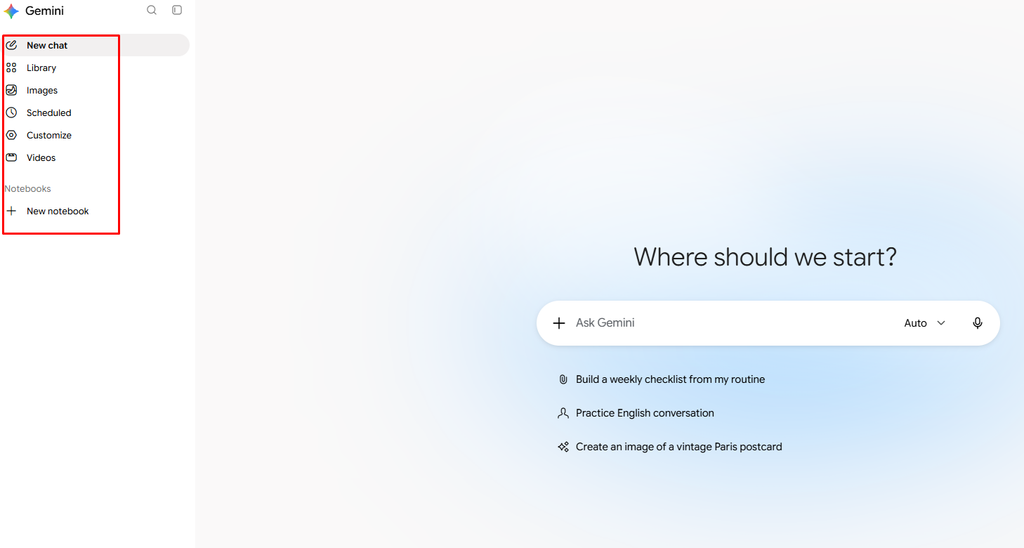
The left navigation panel provides quick access to several core features. Each one serves a different purpose and can support various personal and professional workflows.
- New Chat: This option starts a fresh conversation with Gemini. It’s useful when switching between unrelated topics, such as moving from personal research to writing a professional email. Starting a new chat also helps keep conversations separate and easier to manage.
- Library: The Library provides a convenient place to access saved content and previously generated creations. Instead of searching through multiple conversations, users can return to supported saved items and find useful work more easily.
- Images: The Images section provides access to Gemini’s AI image-generation capabilities. Users can create visuals for presentations, blog posts, social media content, and creative projects directly through the platform.
- Scheduled: This feature allows users to set up recurring tasks and prompts. For example, you can schedule regular information updates, daily briefings, or other repeated requests instead of manually entering the same prompt every time. Availability and supported scheduling options may depend on the account and plan.
- Customize: The Customize section helps users personalize their Gemini experience. Depending on the available settings, users can adjust preferences and provide background information so that Gemini can deliver responses that better match their needs.
- Videos: The Videos section provides access to Gemini’s AI-powered video creation tools. It offers a dedicated starting point for exploring video generation and creating visual content for different projects. Available capabilities may vary by account and subscription.
Organizing Research with Notebooks
Another useful part of the Gemini interface is the Notebooks section, which appears below the main navigation options. It includes a + New notebook option for creating a dedicated space to organize related information.
Notebooks can be helpful when working on larger projects that involve multiple sources, ideas, and research materials. For example, you might create separate notebooks for planning a vacation, researching a business topic, or preparing for an exam.
Rather than keeping everything scattered across individual conversations, a notebook provides a more structured way to manage related work. This can make it easier to revisit information, continue ongoing projects, and keep important ideas organized.
Features such as Library, Images, Videos, Customize, and Notebooks can make everyday workflows more convenient, while Scheduled tasks offer another way to reduce repetitive work. Exploring these options can help users discover capabilities they might otherwise overlook.
Generating Realistic Images with Google Gemini: Exploring the Images Workspace
Creating realistic images with AI is becoming surprisingly easy. You no longer need professional design skills or complicated editing software to turn an idea into a visual. With Google Gemini’s Images workspace, you can simply describe what you have in mind and let AI bring that scene to life.
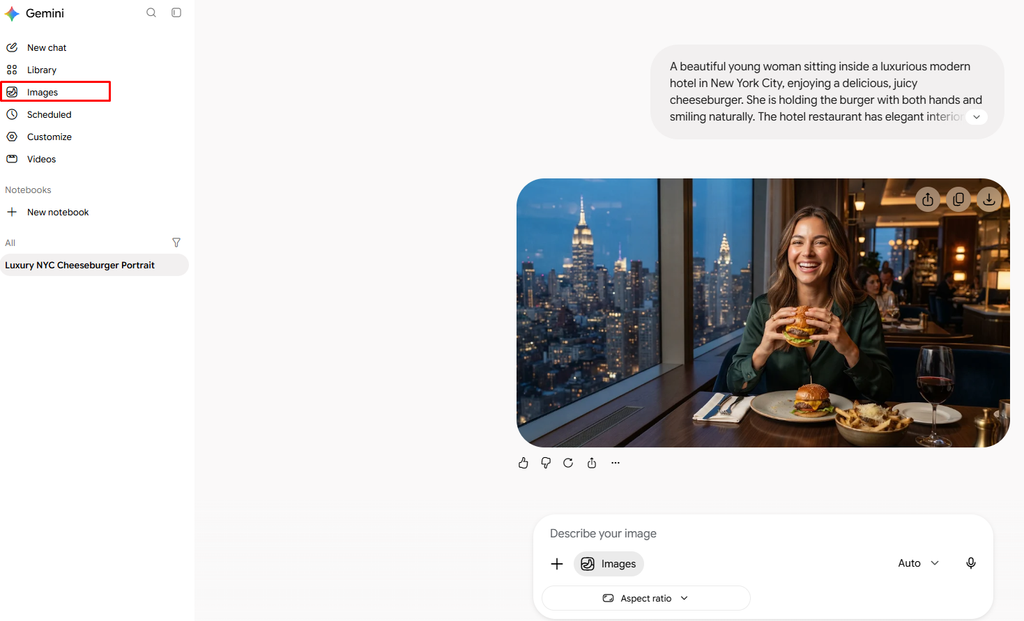
For example, imagine a young woman sitting in a stylish restaurant in New York City, enjoying a cheeseburger while the city skyline glows through the windows behind her. You can describe the setting, the lighting, the food, and even the person’s expression in a single prompt. Gemini uses those details to create an image based on your description.
What makes this feature interesting is how much control you have over the result without needing to learn a complicated design tool.
Creating an Image with a Text Prompt
The first step is to open the Images section from the Gemini sidebar. You’ll find a prompt field labeled Describe your image, where you can explain what you want Gemini to create.
The quality of your prompt can make a noticeable difference. A short instruction such as “a woman eating a burger” might produce a basic result, but adding details about the location, surroundings, lighting, and mood gives Gemini a much clearer idea of what you’re looking for.
For instance, you could describe a young woman sitting inside a luxurious modern restaurant in New York City, holding a cheeseburger with both hands and smiling naturally. You can also mention large windows overlooking the evening skyline, elegant table settings, and warm indoor lighting.
These small details help establish the atmosphere of the scene. Instead of getting a generic restaurant image, you give Gemini a more specific direction to follow.
Exploring the Image Creation Controls
The Images workspace keeps the main controls simple, so you don’t have to spend much time figuring out where everything is.
- Describe your image: This is the main prompt box where you enter your idea. You can describe the subject, background, clothing, surroundings, lighting, and other visual details.
- Aspect Ratio: This setting lets you choose the shape of the generated image. A landscape format works well for website banners and blog illustrations, while square and portrait formats are useful for social media and other creative projects.
- Image Actions: After Gemini generates an image, you can use the available controls to download, copy, or share your creation. Feedback options may also be available to help improve the results.
Getting More Natural Results from Your Prompts
One thing worth remembering when generating images is that more complicated prompts aren’t always better. What matters is describing the scene clearly and giving Gemini enough context to understand what you want.
Think about the image as a real photograph. Where is the subject sitting? What are they doing? What does the background look like? Is the scene taking place during the day or at night? Even mentioning something as simple as soft window lighting or a natural facial expression can help guide the overall look.
It’s also worth experimenting with different descriptions if the first result isn’t quite right. You might change the camera angle, adjust the lighting, or add more details to the surroundings. A few small changes can produce a noticeably different result.
Google Gemini Pricing: Plus vs Pro vs Ultra
If you want to get more out of Google Gemini, upgrading to a Google AI plan is worth considering. Google offers three subscription options: AI Plus, AI Pro, and AI Ultra. Each plan comes with different usage limits, AI capabilities, and cloud storage, so you can choose one based on how often you use Gemini and what you need it for.
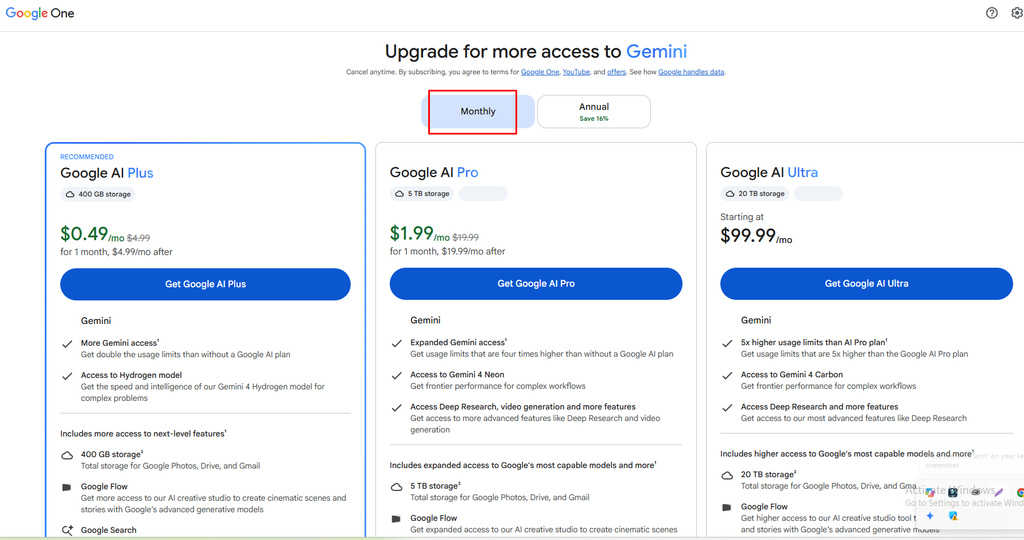
As you can see in the first screenshot, Google displays its plans with monthly billing options. The AI Plus plan starts at $4.99 per month, while AI Pro costs $19.99 per month. AI Ultra is the most expensive option, starting at $99.99 per month. The plans also include 400 GB, 5 TB, and 20 TB of storage, respectively, which can be used across Google Photos, Drive, and Gmail.
What Do You Get with Each Plan?
The Google AI Plus plan is a reasonable starting point if you use Gemini regularly but don’t need the highest usage limits. It offers twice the usage limits available without a Google AI subscription, access to the Hydrogen model, and 400 GB of storage. You also get additional access to Google Flow and Nano Banana in Google Search, making it useful for everyday AI tasks and occasional creative projects.
If you rely on AI more frequently, Google AI Pro offers a noticeable step up. It provides four times the Gemini usage limits compared with users without a Google AI plan. You also get access to the Neon model, along with expanded access to Deep Research, video generation, and Google Flow. Another major advantage is the included 5 TB of cloud storage, which can be useful if you already depend on Google’s services for work and personal files.
Then there’s Google AI Ultra, which is designed for people who want considerably more AI access. It includes the Carbon model, 20 TB of cloud storage, and higher usage limits than the Pro plan. Google also offers increased access to advanced features such as Deep Research and its AI creative tools. At $99.99 per month, however, it’s a significant investment, so it makes the most sense for people who regularly use these advanced capabilities.
Monthly vs Annual Pricing
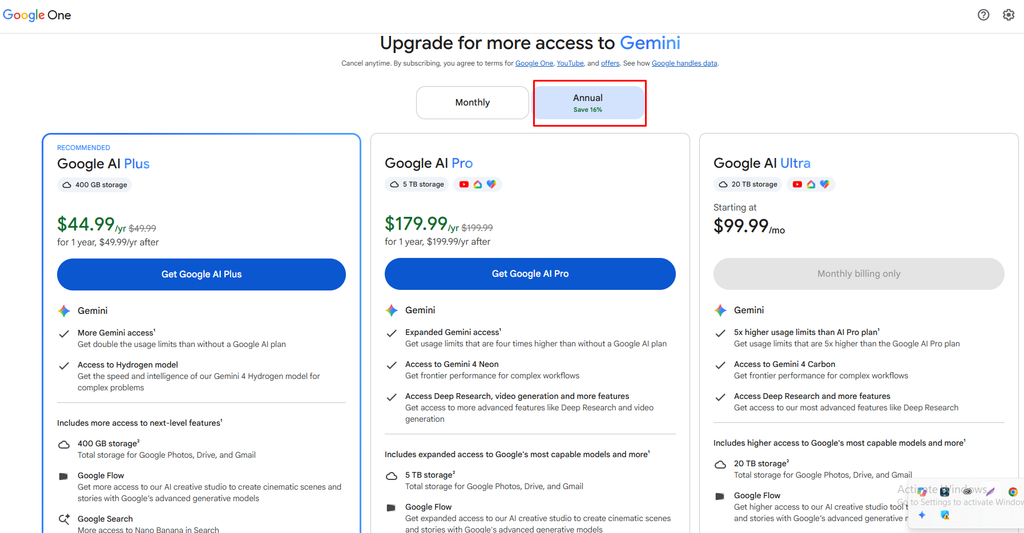
Google also gives users the option to pay annually on selected plans. As shown in the second screenshot, choosing annual billing reduces the introductory cost of AI Plus and AI Pro.
The AI Plus plan costs $44.99 for the first year instead of the regular $49.99 annual price. Meanwhile, AI Pro costs $179.99 for the first year, compared with its regular annual price of $199.99. After the introductory year, the subscriptions renew at their regular annual rates. AI Ultra, on the other hand, is shown with monthly billing only.
Which Plan Is Worth It?
Honestly, you don’t need Google AI Ultra just to enjoy Gemini. For everyday questions, writing, and general productivity, AI Plus may be more than enough. If you regularly work with research, content creation, and video generation, AI Pro is likely to offer a better balance of features and price.
AI Ultra is mainly worth considering if you use Google’s advanced AI tools heavily and can take advantage of its much higher usage limits and 20 TB storage.
One thing I particularly like about Google’s subscription setup is that the plans combine AI access with cloud storage. So, you’re not just paying for a chatbot upgrade; you’re also getting additional space for your everyday Google services.
Ultimately, the best choice comes down to your actual usage. I’d recommend starting with the plan that comfortably covers your needs rather than paying extra for features you may rarely use.
Google Gemini Pros and Cons
Like any AI tool, Gemini has real strengths and a few drawbacks. Here’s a quick look at both sides before you decide whether to upgrade.
Pros
- Free plan available for everyday use
- Useful sidebar tools like Library, Scheduled, Customize and Notebooks
- Built-in image and video generation
- Simple, uncluttered interface that beginners can pick up quickly
- Paid plans bundle AI access with Google storage (400 GB to 20 TB)
- Works with Google Photos, Drive and Gmail
- Annual billing can save money on Plus and Pro
- Affordable entry plan (AI Plus)
Cons
- Free plan comes with usage limits
- Some features may depend on your account, plan or region
- Advanced creative tools work best on paid plans
- Plan details and model access change often
- Ultra costs $99.99/month or more, which is a big jump from Pro
- Introductory prices go up after the first month or year
- AI Ultra is monthly billing only
- Gemini Pro model selection is moving away from AI Plus
Overall: Gemini is a flexible option, especially if you already use Google’s apps. The free version is a good place to start, and you can upgrade once you actually hit its limits.
Final Verdict: Is Google Gemini Worth Exploring?
Google Gemini has become a surprisingly versatile AI workspace. Its sidebar tools make it easier to organize conversations and ongoing projects, while the Images workspace gives users a straightforward way to create visuals from text prompts.
The subscription options add another layer of flexibility. Casual users can stick with the free experience or consider AI Plus, while people who need more advanced research, creative tools, and higher usage limits have the option to move up to Pro or Ultra.
Of course, not every feature will be equally useful to everyone. Some people may spend most of their time chatting with Gemini, while others will get more value from image generation, video creation, or organized research.
The best way to approach Gemini is to explore the tools that actually fit your workflow. You might find that a feature sitting quietly in the sidebar becomes one of the most useful parts of your everyday AI routine.