
How to use Leonardo AI
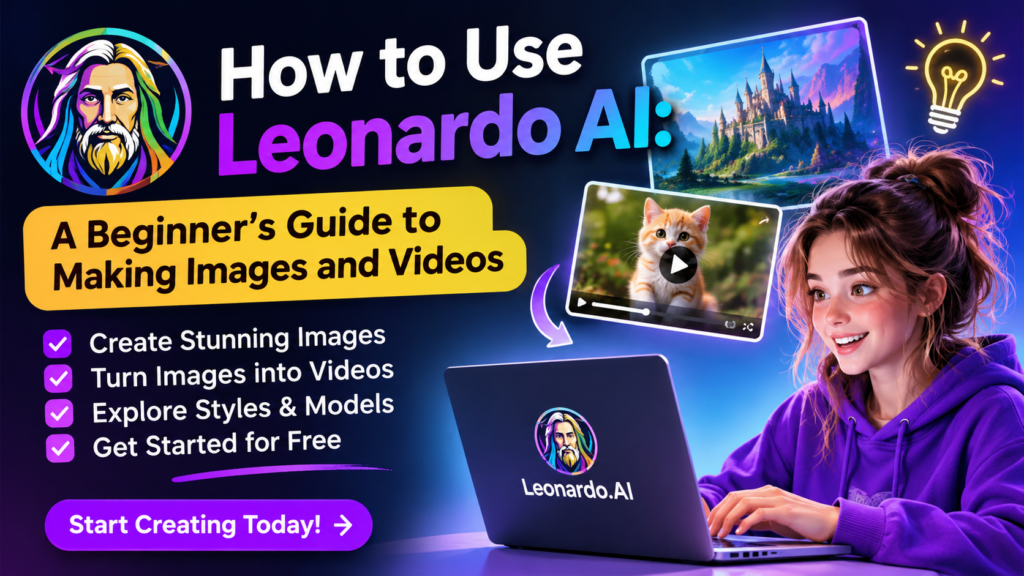
A few years ago, if you wanted a custom image for your blog or YouTube channel, you either had to learn design software or pay someone to make it. Now you can type a sentence, wait a few seconds, and get a finished picture. Leonardo AI is one of the tools that makes this possible.
I have been trying it out, and honestly, it is easier than most people expect. You do not need any design background. In this guide, I will walk you through signing up, writing your first prompt, creating an image, and even turning that image into a short video.
Pros and Cons of Leonardo AI
✔ Pros of Leonardo AI
✓ Easy to use for beginners.
✓ Converts images into videos.
✓ Offers many styles and AI models.
✓ Provides free credits to get started.
✘ Cons of Leonardo AI
✗ Free credits are limited.
✗ Videos use more credits than images.
✗ Multiple attempts may be needed.
✗ Some features require a paid plan.
Creating Your Account
Getting started takes about a minute. Open leonardo.ai and click the Sign Up or Log In button. You can continue with Google, Apple, Microsoft, Canva, or an email address. I used Google because it is the fastest.

If you click on Continue with Google, you will be logged in with just one click. Once you log in, you will receive 150 free credits to start creating images and videos.
A Quick Look at the Dashboard, After logging in, you land on the dashboard. This is the main page where all the tools live. You will see options like Image Generation, Video Generation, 3D Generation, Flow State, Blueprints, and Audio Generation.
It may look like a lot at first, but for now you only need Image Generation. You can explore the rest later.
How to Generate Your First Image
Open Image Generation and you will see a box where you type your prompt. This is the most important part, so take a moment with it.
A weak prompt like “a cat” gives a boring, generic result. A better one is: “A white cat sitting on a sofa, soft natural light, realistic photography, highly detailed.” Here you are telling the AI the subject, the setting, the style, and the lighting.
Next, choose the image size. Square (1:1) works for Instagram posts, portrait (2:3) is good for posters and phone wallpapers, and landscape (16:9) is best for YouTube thumbnails. Then pick an AI model and a style, choose how many images you want, and click Generate.

After a few seconds, your images appear. If you like one, download it. If not, tweak your prompt and try again. That back and forth is how everyone learns.
If you get stuck, use this formula: subject, setting, style, lighting, and extra details.
I used the Image Generation component in Leonardo AI to create an AI-generated image. I selected Auto Image as the Model, Dynamic as the Style, 16:9 as the Image Ratio, and 1344×768 as the Resolution. I set Number of Generations to 1 and kept Private Mode turned off. Then, I entered a detailed prompt and clicked the Generate button. As a result, a beautiful and realistic image of a white cat was generated. I completed the entire process using Leonardo AI’s Free Plan.
Turning Your Image Into a Video
Leonardo AI can also take a still image and make it move.
Understanding Credits, Most things in Leonardo AI cost credits. Making an image uses some, and making a video usually uses more. Free accounts typically get a limited amount, but the number can change, so check your own account to see what you currently have. Always look at the credit cost before you click Generate. It saves you from wasting credits on a test.
Open Video Generation, then upload an image or pick one you already made. Next, describe the motion. For example: “The cat slowly lies down on the sofa and looks toward the camera.” Choose the video quality and length, check the credit cost, and click Generate. Keep your motion prompt simple. One clear action usually works better than a long list of things happening at once.

I created a video using Leonardo AI, and the video generation took approximately 90 credits. The video quality was good, but I noticed a few things that need to be checked carefully. Please review the results properly and work accordingly. Keep in mind that 90 credits were used for video generation.
Leonardo AI Audio
I used the Audio Generation component in Leonardo AI and selected the Music model. I set the Duration to 1 minute and Number of Generations to 1. I kept Instrumental Only and Private Mode turned off. The Generate button shows a cost of 700 credits for this generation. My remaining credit balance was 52 credits, and I used the Free Plan to explore the audio generation feature.

Leonardo AI Pricing: Free vs Paid Plans
Leonardo AI offers both free and paid subscription plans to meet different creative needs. The Free Plan is a good option for beginners who want to explore AI image and video generation without spending money.
With the free plan, users receive 150 daily tokens (as shown in the tutorial). These tokens can be used to generate images and videos. However, advanced features such as high-quality video and audio generation may require more tokens.
For users who need more creative freedom, Leonardo AI offers several paid plans with additional tokens and premium features.
Leonardo AI Pricing Comparison
| Plan | Price (Monthly) | Best For |
|---|---|---|
| Free | $0 | Testing and casual use |
| Essential | $10/month | Beginners and regular creators |
| Premium | $24/month | Frequent content creators |
| Ultimate | $48/month | Professionals and heavy users |
| Team Plans | From $24/seat/month | Small creative teams |
Note: Prices are based on the provided information and may change. Taxes may apply.
Paying annually can help users save money compared to monthly subscriptions. For example, the Essential plan costs approximately $120 per year instead of $144 when paid monthly.
Before purchasing any subscription, it is always a good idea to check the official Leonardo AI pricing page for the latest prices and available features.

Which Plan Should You Choose?
Choosing the right Leonardo AI plan depends on your creative needs and budget.
- Free Plan: Best for beginners who want to learn how Leonardo AI works and experiment with image and video generation.
- Essential Plan: A good starting upgrade for users who regularly create AI images and need more credits.
- Premium Plan: Suitable for frequent creators who produce images and videos for social media, blogs, and marketing.
- Ultimate Plan: Ideal for professionals who need more generation capacity and advanced creative features.
My Recommendation: If you are a beginner, start with the Free Plan. Use it for a week to understand the platform and test its features. Upgrade to Essential when you start creating content regularly. There is no need to purchase an expensive plan unless your creative workload requires it.
Other Features Worth Trying
Once you are comfortable, try the other tools. 3D Generation helps with three-dimensional content, Flow State is useful for exploring image ideas, Blueprints offers ready-made workflows, and there are editing tools to improve your images. Some depend on your plan, so you may not see everything on a free account.
Frequently Asked Questions
Is Leonardo AI free?
It has a free option with limited credits. If you plan to create a lot, you will probably need a paid plan.
Do I need design skills?
No. A clear, detailed prompt is enough to get good results.
Can I make videos with it?
Yes. You can turn any image into a short video.
Final Thoughts
Leonardo AI is a good place to start if you are new to AI image creation. Start with a simple prompt, play with different styles, and do not be afraid to try again when a result is not what you wanted. After a few tries, you will get the hang of it.